




Outgoing Messages
The LogicalDOC Outlook Add-in helps you manage outgoing correspondence without leaving Microsoft Outlook. You can file sent emails and their attachments in LogicalDOC, or attach documents already stored in the LogicalDOC repository to a message you are composing.
Filing Outgoing Emails
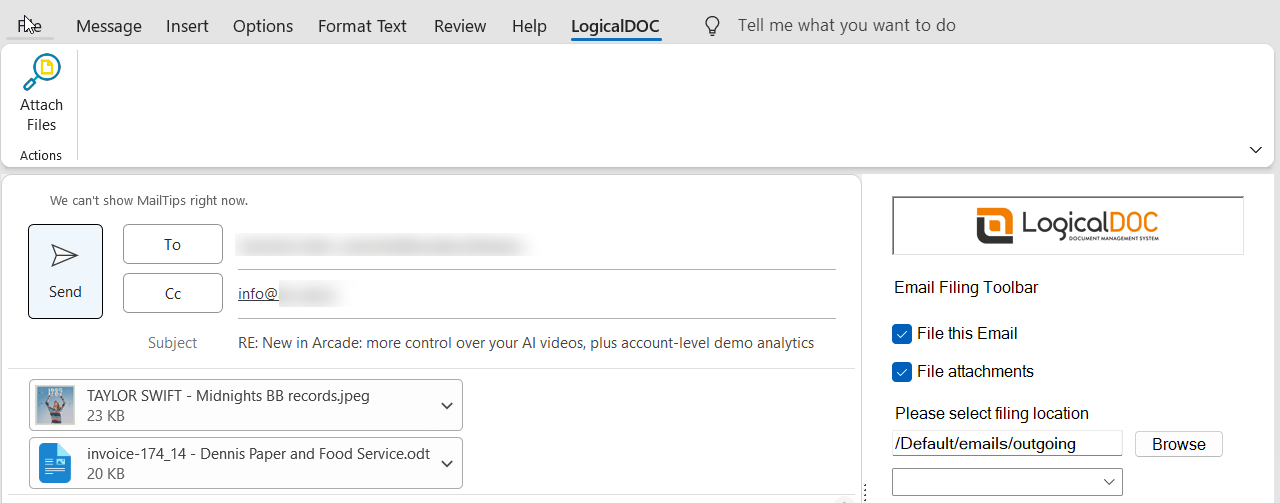
When composing a new email or replying to an existing message, the Email Filing Toolbar appears on the right side of the Outlook window. Use it to choose whether the outgoing message and its attachments should be filed in LogicalDOC.
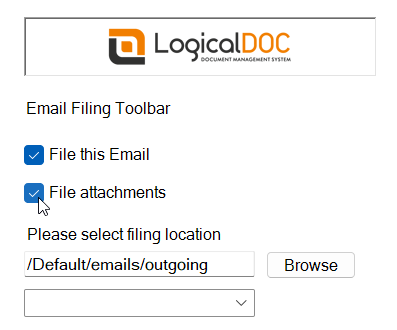
The toolbar provides the following controls:
- File this Email: Enable filing of the outgoing email in LogicalDOC when the message is sent.
- File attachments: Enable filing of the attachments included in the outgoing message.
- Please select filing location: Review the LogicalDOC destination folder for the outgoing correspondence.
- Browse: Choose another destination folder in the LogicalDOC repository.
For example, you can organize sent correspondence under /Default/emails/outgoing. Select the appropriate destination before sending the email.
Where email metadata is managed using the LogicalDOC email template, the corresponding message information can be organized and retrieved using those metadata fields. See Import Emails and Attachments for further information about email filing.
Filing Confirmation
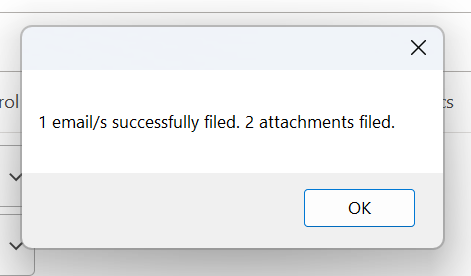
After the filing operation, Outlook displays a confirmation indicating how many email messages and attachments were successfully filed.
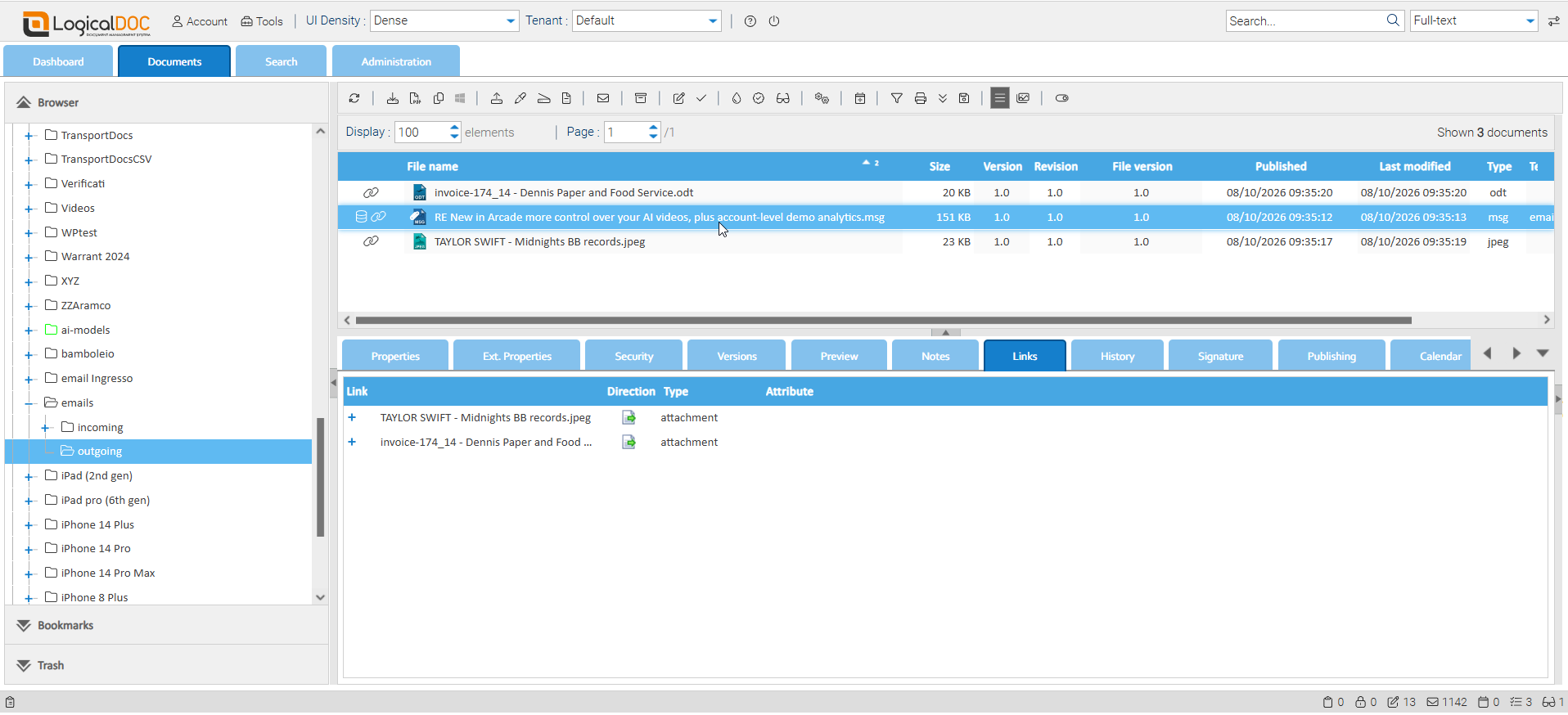
Viewing Filed Emails and Attachments in LogicalDOC
When both File this Email and File attachments are selected, the outgoing email and each of its attachments are stored as separate documents in the same LogicalDOC destination folder.
The message and its attachments remain linked. A chain-link icon beside the filenames indicates these relationships. Select the filed email and open the Links tab to see its associated documents. The related documents can also be downloaded together as a ZIP package.
Attaching Documents from LogicalDOC
You can also add existing LogicalDOC documents to an outgoing Outlook message, without first downloading them manually to your computer.
- Compose a new message or open a reply in Outlook.
- Select the LogicalDOC tab in the Outlook ribbon.
- Click Attach Files to open the document selection window.
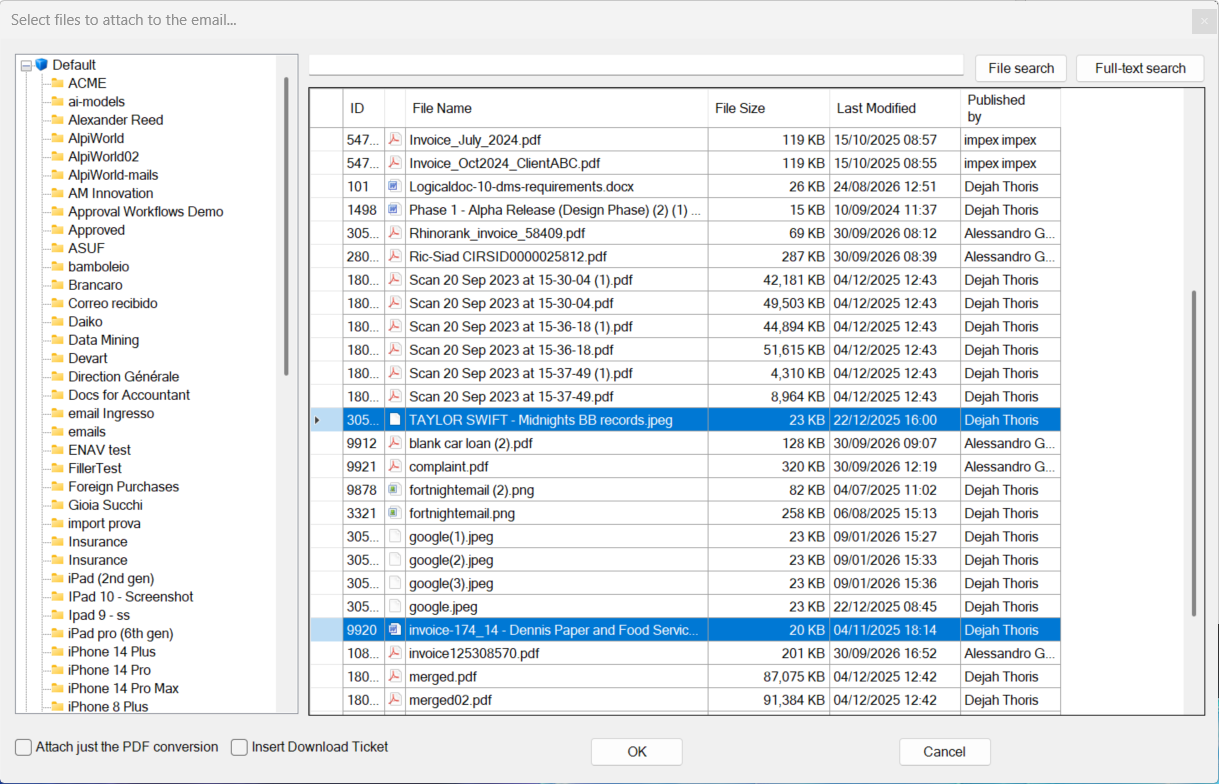
- Browse the folder tree or use File search or Full-text search to find the documents you need.
- Select one or more documents and choose any relevant attachment options.
- Click OK to add the selected documents to the email.
Browsing and Searching for Documents
The selection window shows the LogicalDOC folder tree and a document list with useful information such as file name, file size, last modification date, and publisher. Multiple documents can be selected in the list.
Attachment Options
Before confirming the selection, the dialog provides two additional options:
- Attach just the PDF conversion: Attach the PDF conversion of each selected document instead of its original file. For example, selecting a Word or Excel document attaches its PDF conversion rather than the original Word or Excel file.
- Insert Download Ticket: Insert a download link (download ticket) into the email message for each selected document, instead of attaching the digital file. Recipients can use the link to download the document.
With neither option selected, the original documents are attached. Choose the appropriate delivery method for your recipients. The behavior when both options are selected is not described here.
Reviewing the Outgoing Message
When documents are attached normally, they appear in the Outlook attachment area. You can then complete the message, verify the recipients and attachments, and send the email.
If outgoing email filing is enabled in the Email Filing Toolbar, the message can also be filed in the selected LogicalDOC folder when it is sent.