




LogicalDOC Scanner
LogicalDOC Scanner 1.1.1 is a Windows desktop application for scanning paper documents, preparing PDF files, and exchanging documents with a LogicalDOC repository. This guide introduces its principal functions and explains the typical document acquisition workflow.
Requirements and Installation
- Microsoft Windows and .NET Framework 4.7.2 or later.
- A compatible WIA or TWAIN device for physical scanning.
- LogicalDOC 9.3 with the Scanner feature enabled in the server license for repository integration.
Download the application from the LogicalDOC Scanner 1.1.1 download page and follow the installation instructions included in the distribution.
Application Interface
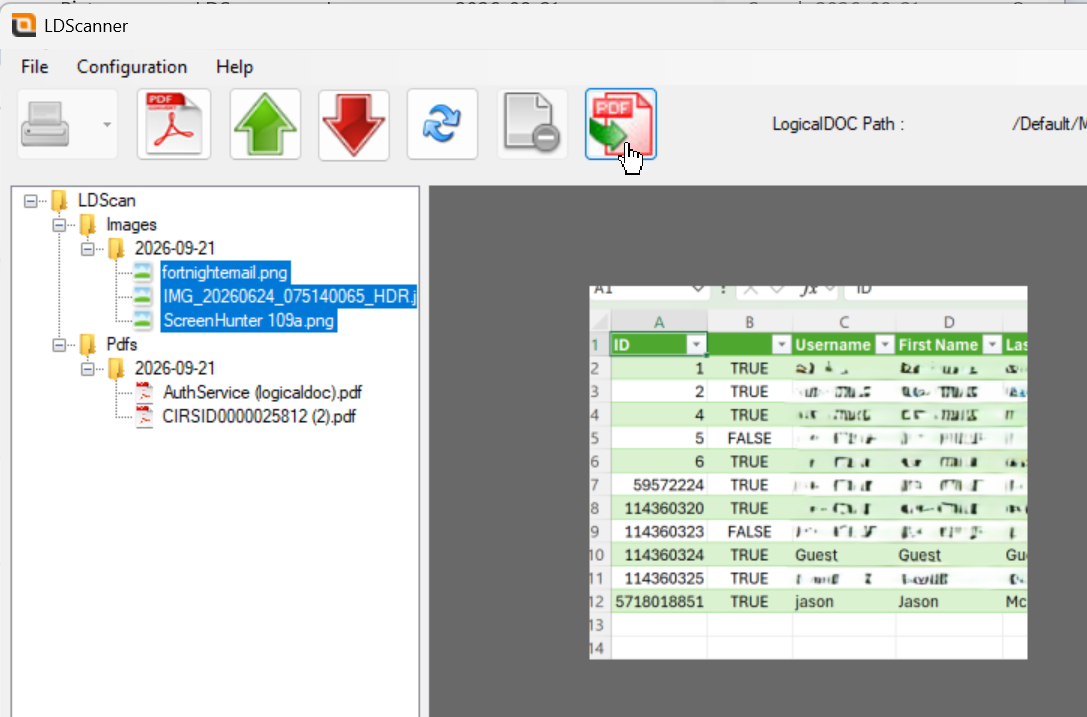
The main window brings together local file navigation, document preview, scanning commands, PDF processing tools, and repository transfer operations. Images and PDF documents are organized in separate local folders. Select a document to inspect it before editing or uploading; multipage PDF preview includes page navigation and zoom controls.
Configure the LogicalDOC Connection
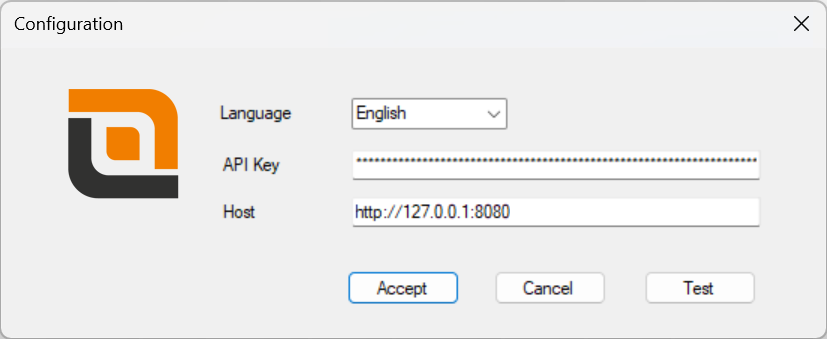
Open the application configuration and enter the LogicalDOC server address and the API key for the account used to access the repository. Use the connection test to verify the settings. Scanner 1.1.1 uses API key authentication and the LogicalDOC 9.3 APIs; the Scanner feature must be enabled in the server license.
The configuration also includes a Language selector for choosing the application interface language.
Scan Paper Documents
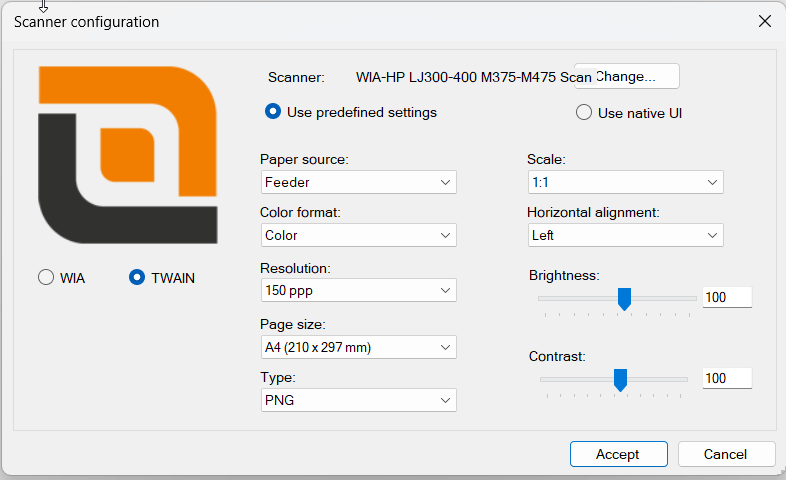
LogicalDOC Scanner supports compatible WIA (Windows Image Acquisition) and TWAIN scanners. You can acquire pages from a flatbed or an automatic document feeder (ADF), depending on the device capabilities.
- Connect the scanner and select the acquisition command.
- Choose the available scanning interface and device settings.
- Load the paper into the flatbed or feeder.
- Start acquisition and review the resulting files.
Depending on the selected driver, settings may include resolution, paper size, color mode, brightness, contrast, scaling and alignment. Where supported, the manufacturer's native interface provides additional device-specific options and page preview.
Batch Scanning
For multipage acquisitions, choose whether to save scanned pages as individual images, combine the acquired batch into one multipage PDF, or create separate PDF documents from the scanned pages. ADF scanning can process successive pages when supported by the device.
Create and Edit PDF Documents
Create PDFs from Images
Select one or more images and convert them into a PDF. Multiple images can be combined into a single multipage document. PDF preparation options include CCITT Group 4 compression for black-and-white scanned content and fitting content to A4 page format.
Append Images to a PDF
Select an existing PDF and use the image-append operation to add one or more image files as additional pages. This is useful when a document needs extra scanned pages or supporting material.
Remove PDF Pages
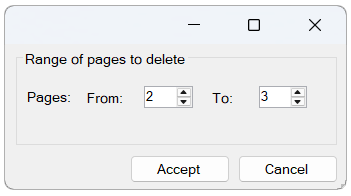
Use the page removal command to specify a page range to delete from an existing PDF, for example to remove blank or unwanted scanned pages. Review the resulting document before transferring it to the repository.
Preview and Print
Use the integrated preview to inspect images and navigate PDF pages with zoom controls. PDF documents can also be printed from the application.
Upload and Download Documents
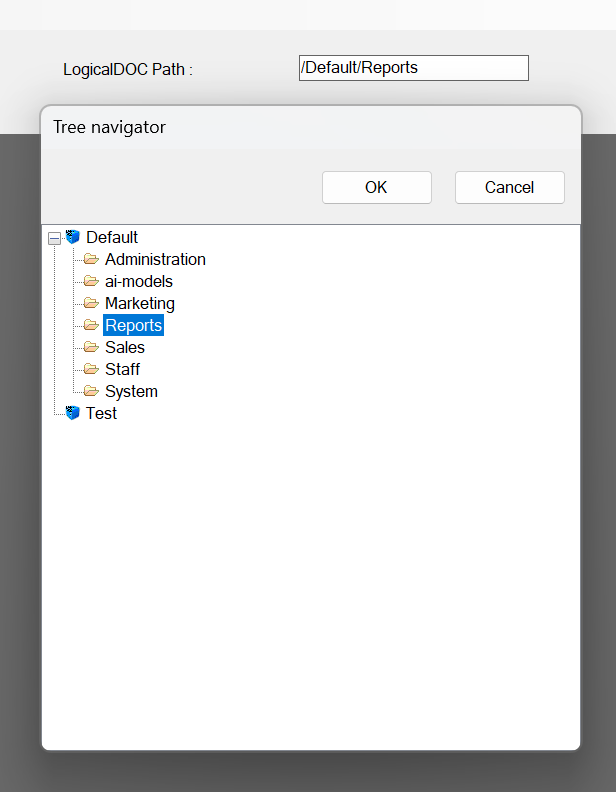
Once a scanned image or PDF is ready, select the local file and start the upload operation. The built-in remote folder navigator lets you choose the destination in the LogicalDOC repository. The application displays the selected destination path and reports the upload result.
You can also download documents from the connected repository for local viewing and processing. Repository operations are subject to the connected account's permissions.
Additional Information
LogicalDOC Scanner 1.1.1 also improves the display of the repository destination folder, provides an Open Folder in File Explorer action, and includes translation and log management fixes.
For software downloads and product information, see LogicalDOC Scanner downloads and the LogicalDOC Scanner overview.