




Configure Outlook Add-in
After installing the LogicalDOC Outlook Add-in, open Microsoft Outlook. A new LogicalDOC menu will be available in the Outlook interface. Open the menu and select Configuration to configure the connection to your LogicalDOC instance and the default options used when archiving emails.
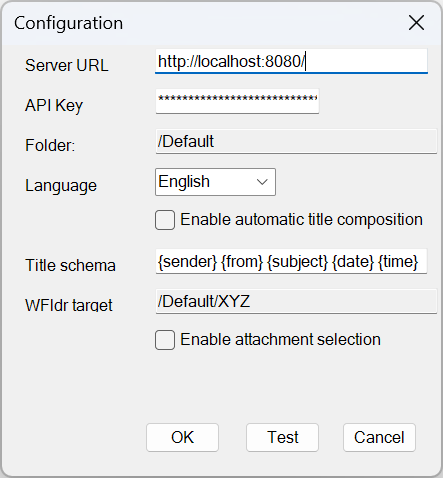
In the configuration window, you can specify the following options:
- Server URL: the URL of your LogicalDOC installation, for example
https://documents.example.com. - API Key: the API key used by the Outlook Add-in to authenticate with LogicalDOC. If you do not have an API key yet, follow the instructions in API Keys to create and activate a new one.
- Folder: the default LogicalDOC folder where emails and attachments will be stored.
- Language: the language used by the Outlook Add-in.
- Enable automatic title composition: when enabled, the title of the document created from an email is automatically generated according to the Title schema defined below.
- Title schema: defines how the title of an archived email is automatically composed. You can combine fixed text with the following placeholders:
{sender}- sender display name;{from}- sender email address;{subject}- email subject;{date}- email date;{time}- email time.
- WFldr target: defines the LogicalDOC target folder associated with the Outlook watched folder. When an email is copied or moved to the LogicalDOC watched folder in Outlook, the message is automatically archived in LogicalDOC as a
.msgfile. - Enable attachment selection: when enabled, the add-in allows you to select which email attachments should be saved in LogicalDOC.
For example, the following title schema:
{sender} {from} {subject} {date} {time}
generates the document title by combining the sender display name, sender email address, message subject, date, and time.
Click Test to verify that the Server URL and API Key allow the Outlook Add-in to connect successfully to LogicalDOC.
Click OK to save the configuration. These settings are stored locally and normally need to be configured only once. You can reopen the configuration window at any time to modify them.