




Import Emails and Attachments
The LogicalDOC Outlook Add-in allows you to archive selected email messages, their attachments, or both directly into the LogicalDOC repository.
Select one or more messages in Outlook and open the LogicalDOC tab. The Save section provides two commands: Emails and Attachments.
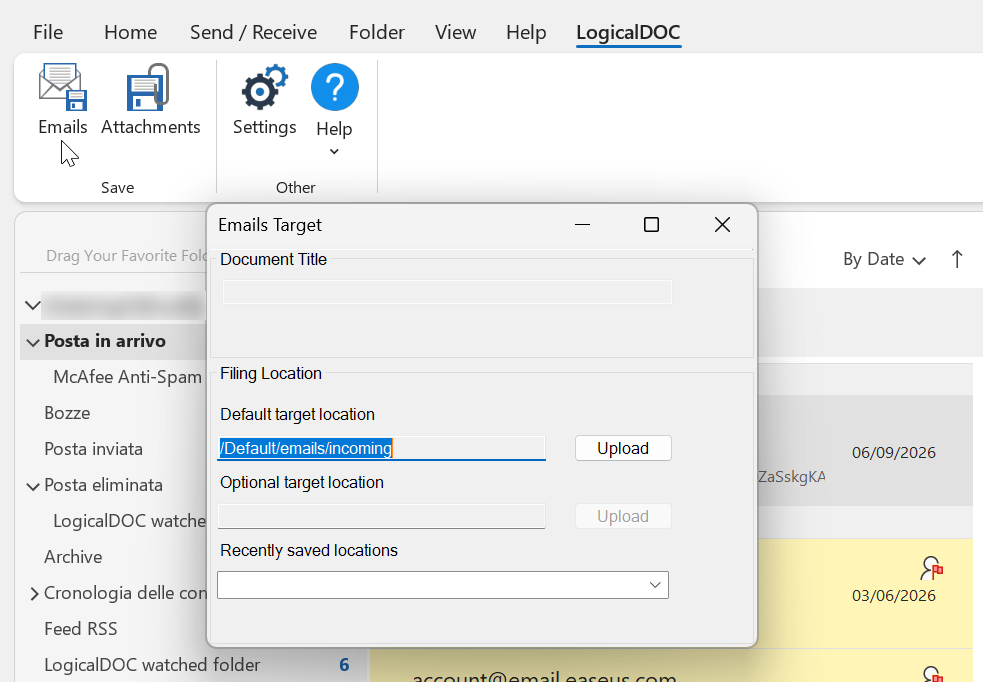
Save Emails
Select the messages you want to archive and click Emails. The Emails Target window allows you to choose where the selected messages will be stored in LogicalDOC.
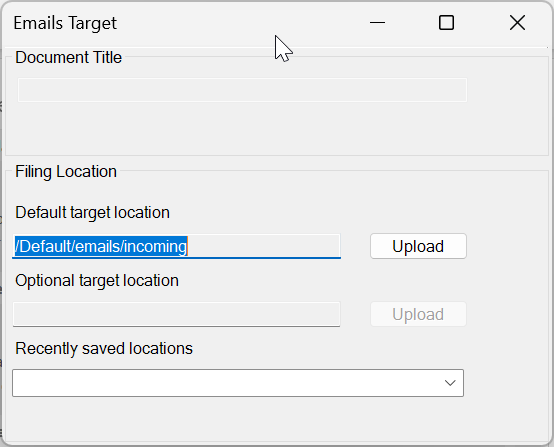
The window provides the following options:
- Document Title: allows you to specify the title to use for the document. When automatic title composition is enabled in the add-in configuration, the title is generated according to the configured title schema.
- Default target location: shows the default LogicalDOC folder configured for storing emails. Click Upload to save the selected messages to this location.
- Optional target location: allows you to specify a different LogicalDOC folder for the current operation.
- Recently saved locations: provides quick access to folders that have recently been used as destinations.
The archived email is stored in LogicalDOC as an email document and is automatically associated with the email template. Relevant information from the original message is extracted and stored as extended properties, including:
- Sender Name: the display name of the sender;
- From: the sender's email address;
- Sent Date: the date and time when the message was sent;
- Subject: the subject of the email;
- To: the message recipients;
- Cc: the recipients included in carbon copy;
- Attachments: indicates whether the original email contains attachments.
These metadata are stored together with the email in the LogicalDOC repository, making archived messages easier to classify, search, and retrieve using the standard LogicalDOC document management features.
The email metadata can also be used to automatically compose the document title. If Enable automatic title composition is enabled in the Outlook Add-in configuration, the title is generated according to the configured Title schema, using placeholders such as {sender}, {from}, {subject}, {date}, and {time}. See Configure Outlook Add-in for details.
Save Attachments
If you only need to archive the files attached to the selected messages, click Attachments in the LogicalDOC toolbar.
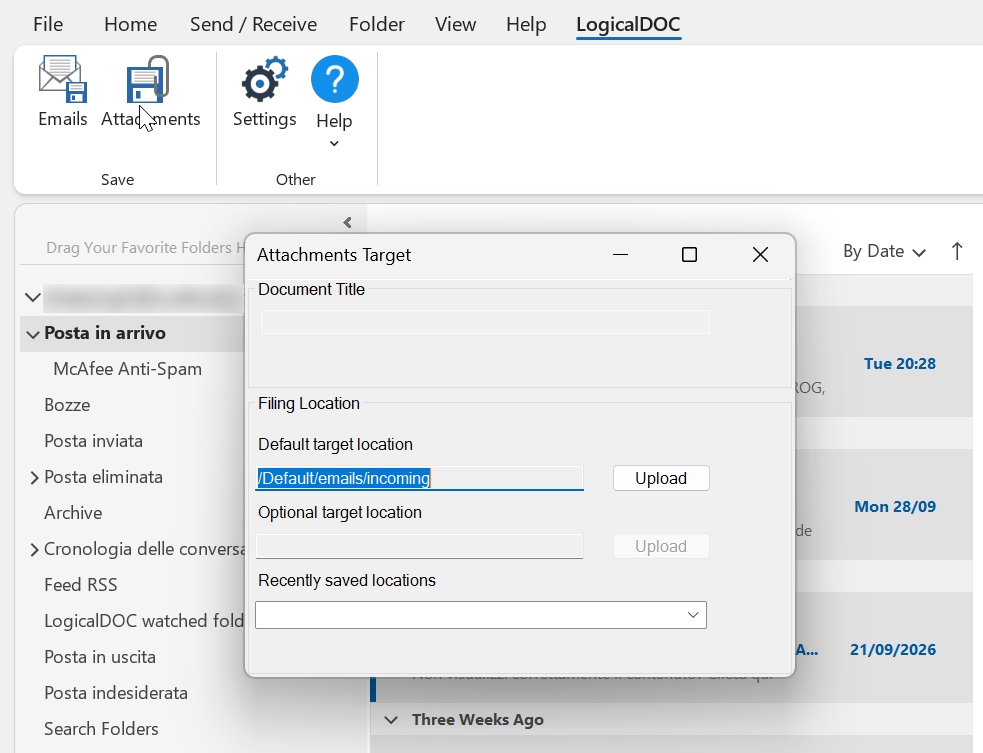
The Attachments Target window provides the same filing options available when saving emails. Select the appropriate LogicalDOC destination and click Upload to archive the attachments without saving the email message itself.
Save from the Outlook Context Menu
As an alternative to the commands available in the LogicalDOC toolbar, you can save messages directly from the Outlook context menu.
Right-click a selected email and choose Save to LogicalDOC.
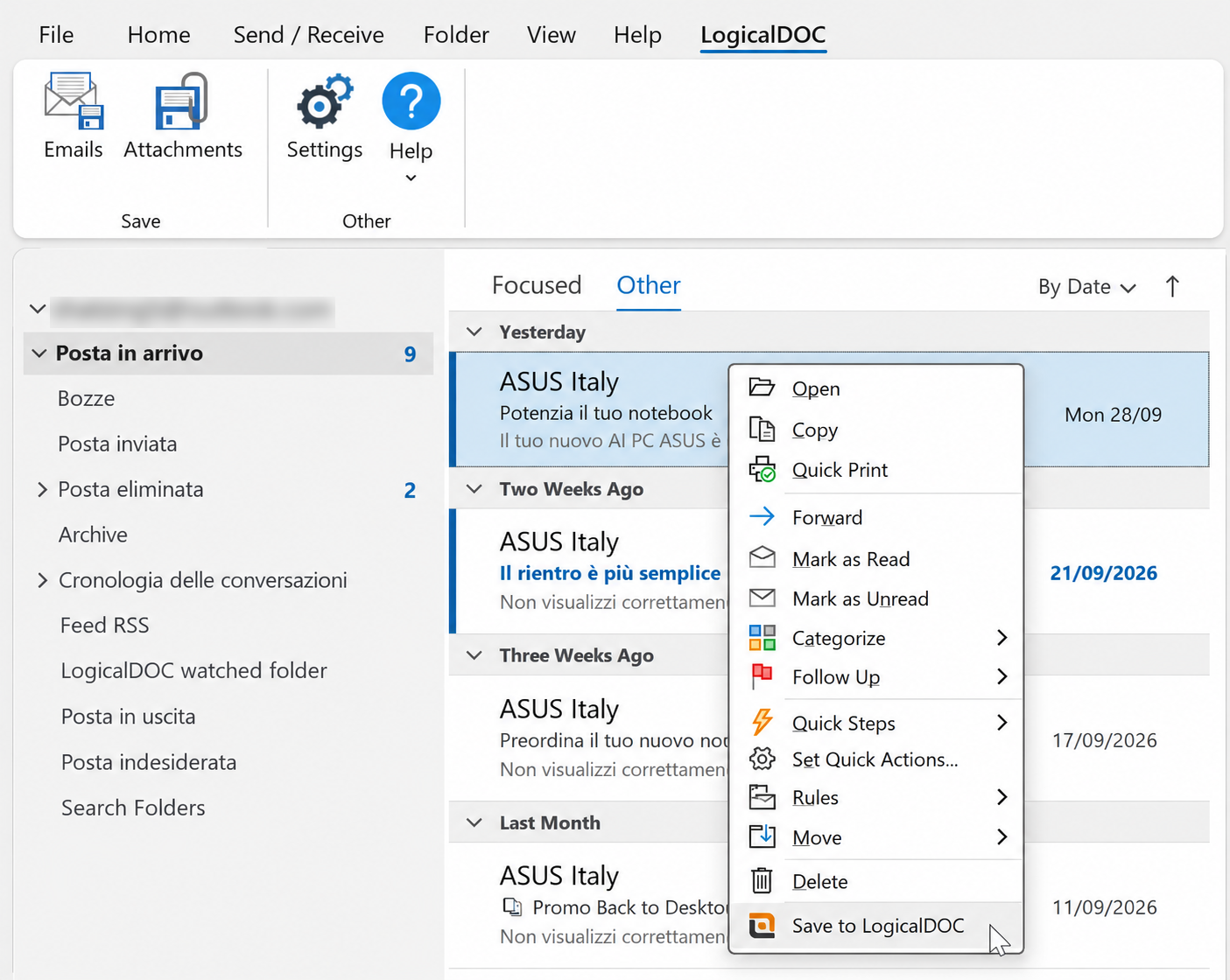
The Save to LogicalDOC window allows you to choose exactly what you want to archive:
- Email only: archives the selected email message;
- Attachment(s) only: archives only the files attached to the selected email;
- Both email and attachment(s): archives both the email message and its attachments.
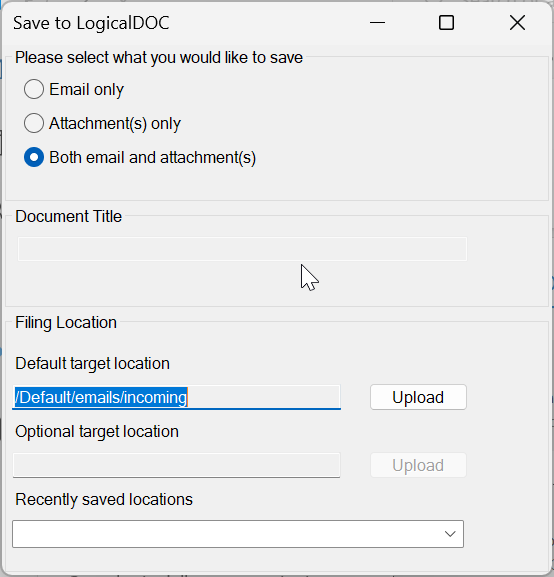
After selecting what you want to save, choose the destination folder using the Default target location, an Optional target location, or one of the Recently saved locations, and then click Upload.
Once stored in LogicalDOC, emails and attachments become part of the document repository and can be organized, searched, shared, versioned, secured, and managed using the standard LogicalDOC document management features.