




Configure Office Addin
This guide shows how to generate a personal API key in LogicalDOC and use it to connect the Office Add-in. Keep the generated key private; LogicalDOC displays its full value only when it gets created.
1
Open API Keys
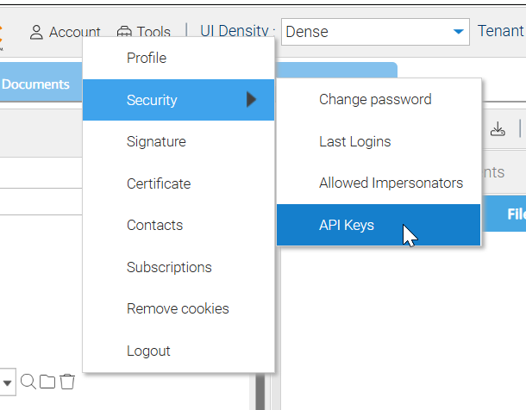
Sign in to LogicalDOC with the user account that will use the Add-in. In the upper left, select Account > Security > API Keys.
2
Create a new key
In the API Keys window, click Create new API Key.
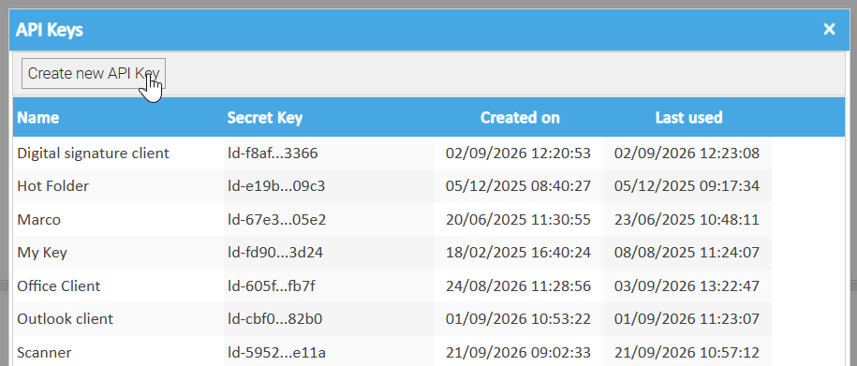
Enter a meaningful name that identifies its use, such as Office Client, and click Ok. The key belongs to your user account.
In the Save your key dialog, use the copy icon to copy the complete key. Store it securely until you have configured the Add-in. If you lose it, generate a new key.
3
Open Add-in settings
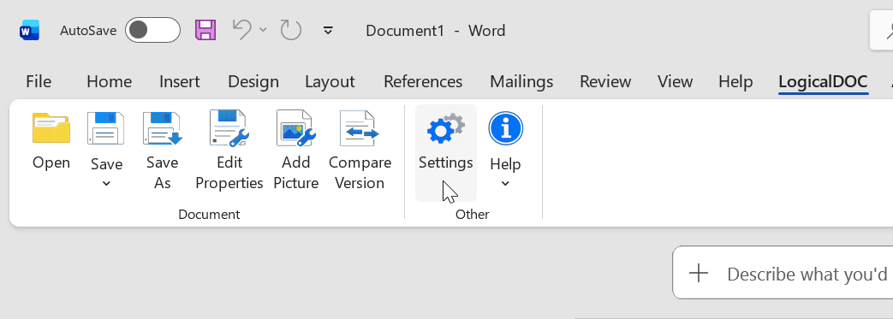
Open Microsoft Word and select the LogicalDOC tab on the ribbon bar. Click Settings.
4
Connect to LogicalDOC
Paste the key into API Key field. Enter your LogicalDOC Server URL, select the desired language, then click Test. When the connection succeeds, click OK to save the configuration.
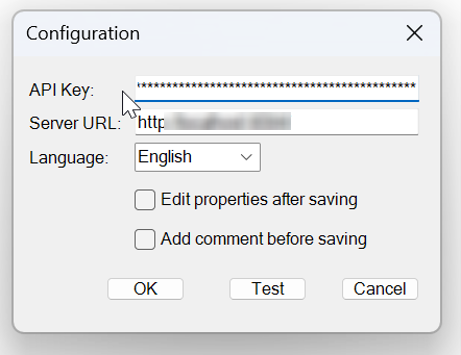
If the test fails: Check that the server URL points to your LogicalDOC instance, that the complete key was pasted without extra characters, and that the key was generated for the intended user.