




Save a Document
Click the Save or Save As button in the LogicalDOC ribbon to save the current Microsoft Office document into the LogicalDOC repository.
The Save Document window allows you to browse the LogicalDOC folder tree, select the destination folder and specify the document name before saving. The document list also shows the files already stored in the selected folder, together with useful information such as the last modification date, version and file size.
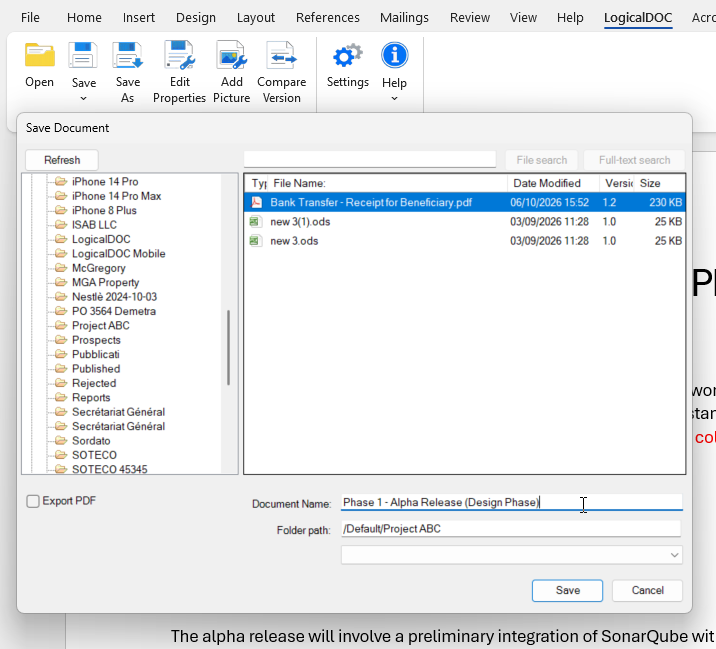
The Document Name field defines the name that will be assigned to the document in LogicalDOC, while the Folder path field displays the selected destination folder. Once the destination and document name have been defined, click Save to store the document in LogicalDOC.
If the current document was originally opened from LogicalDOC, saving it back to the repository automatically creates a new document version, preserving the previous versions in the document history.
Export PDF
The Export PDF option allows the Office Add-in to save a PDF representation of the document together with the original Microsoft Office file.
When this option is enabled, the PDF is generated directly by the Microsoft Office application using its native PDF export capabilities. Both the original document and its PDF representation are then sent to LogicalDOC.
LogicalDOC uses this PDF representation for operations such as document preview, PDF conversion and thumbnail generation. Since the PDF is generated by the native Microsoft Office application, the resulting preview can reproduce the original document's layout and appearance as accurately as possible.
The Microsoft Office file remains the original document stored and versioned in LogicalDOC. The exported PDF is associated with the document and used by LogicalDOC whenever a PDF representation is required.