
Configuring Whatsapp API access
LogicalDOC can use WhatsApp as an additional channel to send notifications to users, such as the security key during two-factors authentication or alerts triggered by workflows.
However, unlike other communication channels such as emails and system messages, WhatsApp does not allow free text messages but only predefined templates. In this guide, we explain how to connect LogicalDOC to a corporate number and generate the necessary templates for notifications.
1. Visit the Meta Business Manager
To allow LogicalDOC to have access to your Whatsapp corporate account, you have to prepare an integration key first, so enter your Meta Business Manager at https://business.facebook.com.
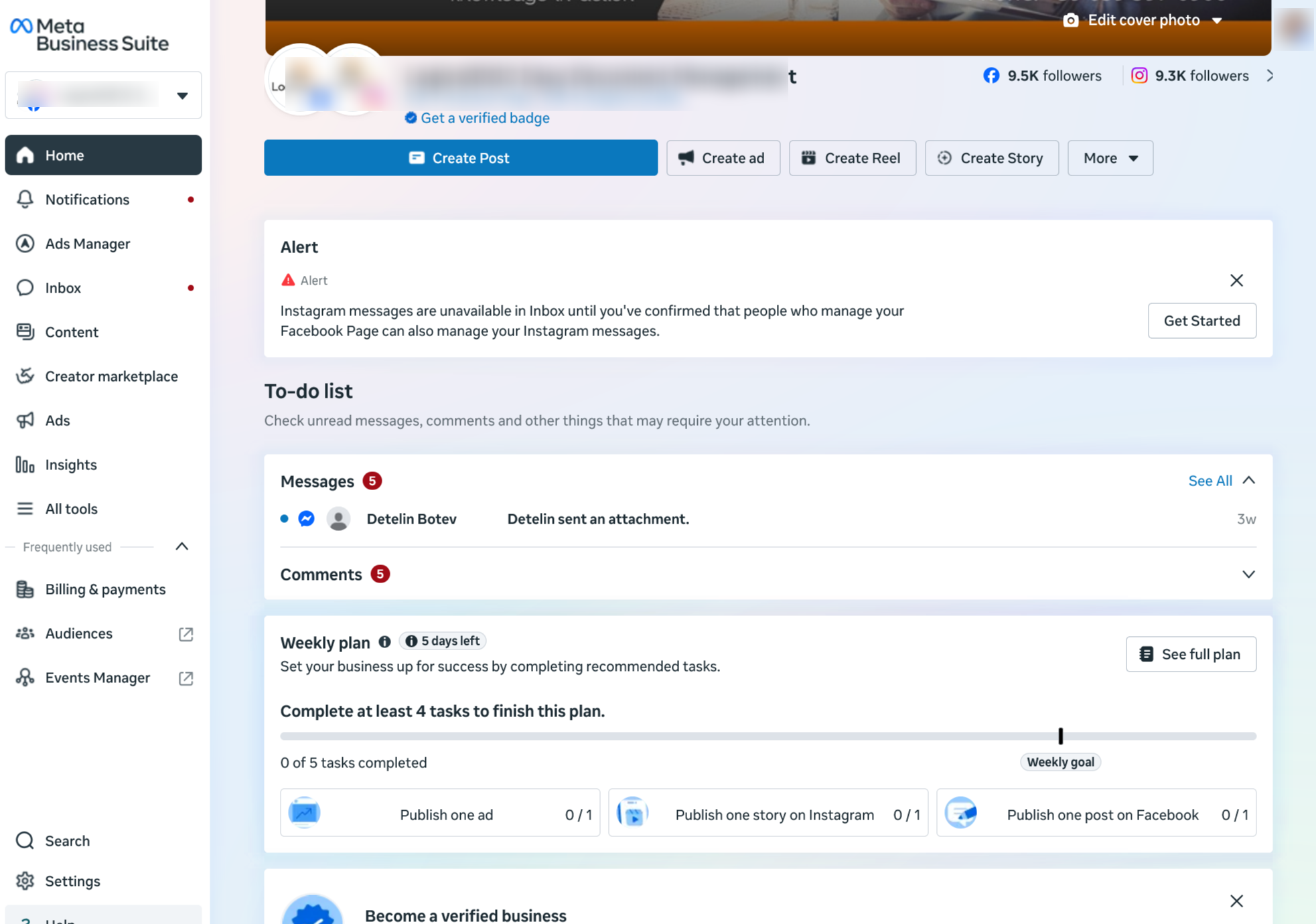
In the navigation bar on the left choose your business portfolio to switch to the right business account.
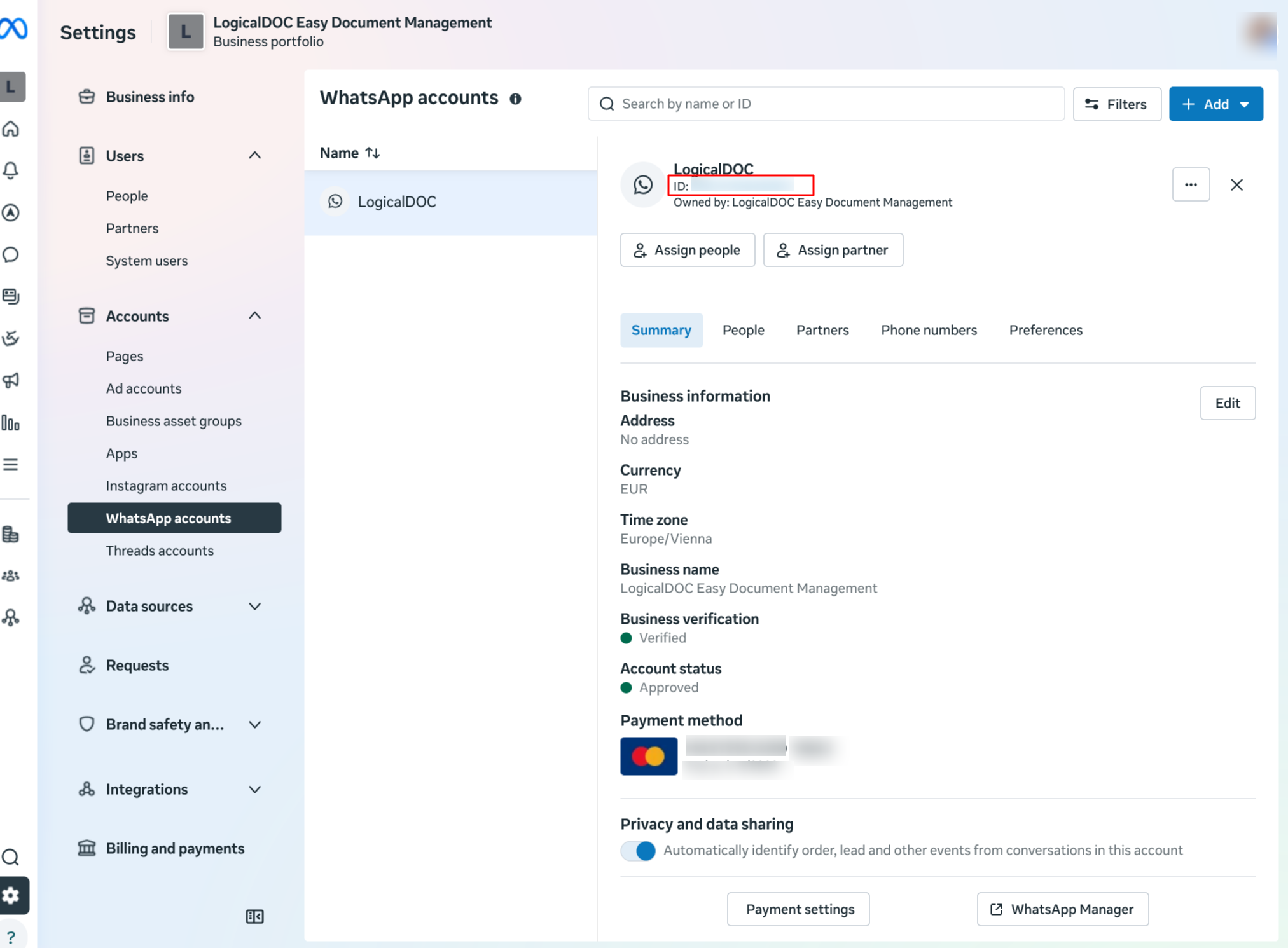
Make sure to have a Whatsapp account and save its ID somewhere for later use.
2. Create the LogicalDOC App
Choose the item Apps item in the Accounts section
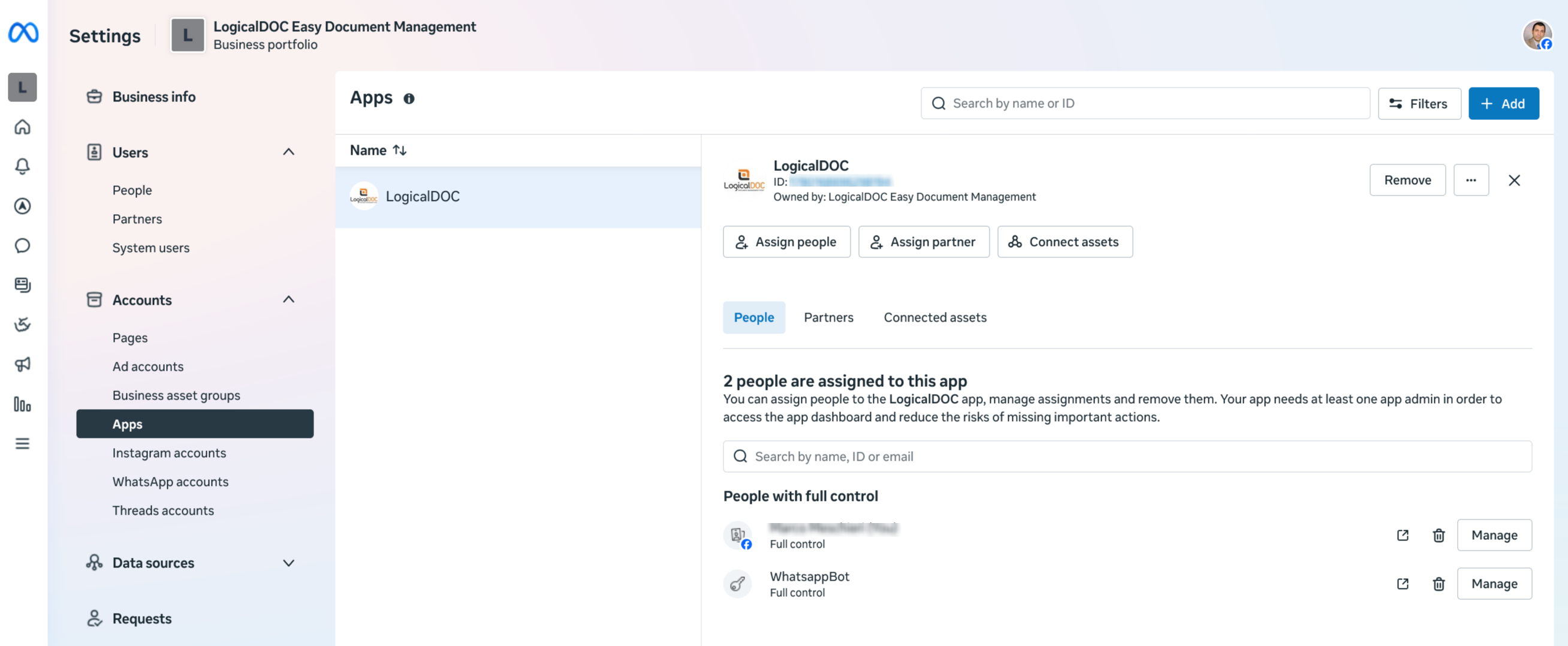
Here click on the Add button to create a new App, give LogicalDOC as name.
In the creation wizard, you have to caustomize the use case, you may choose just the Connect with customers through Whatsapp.

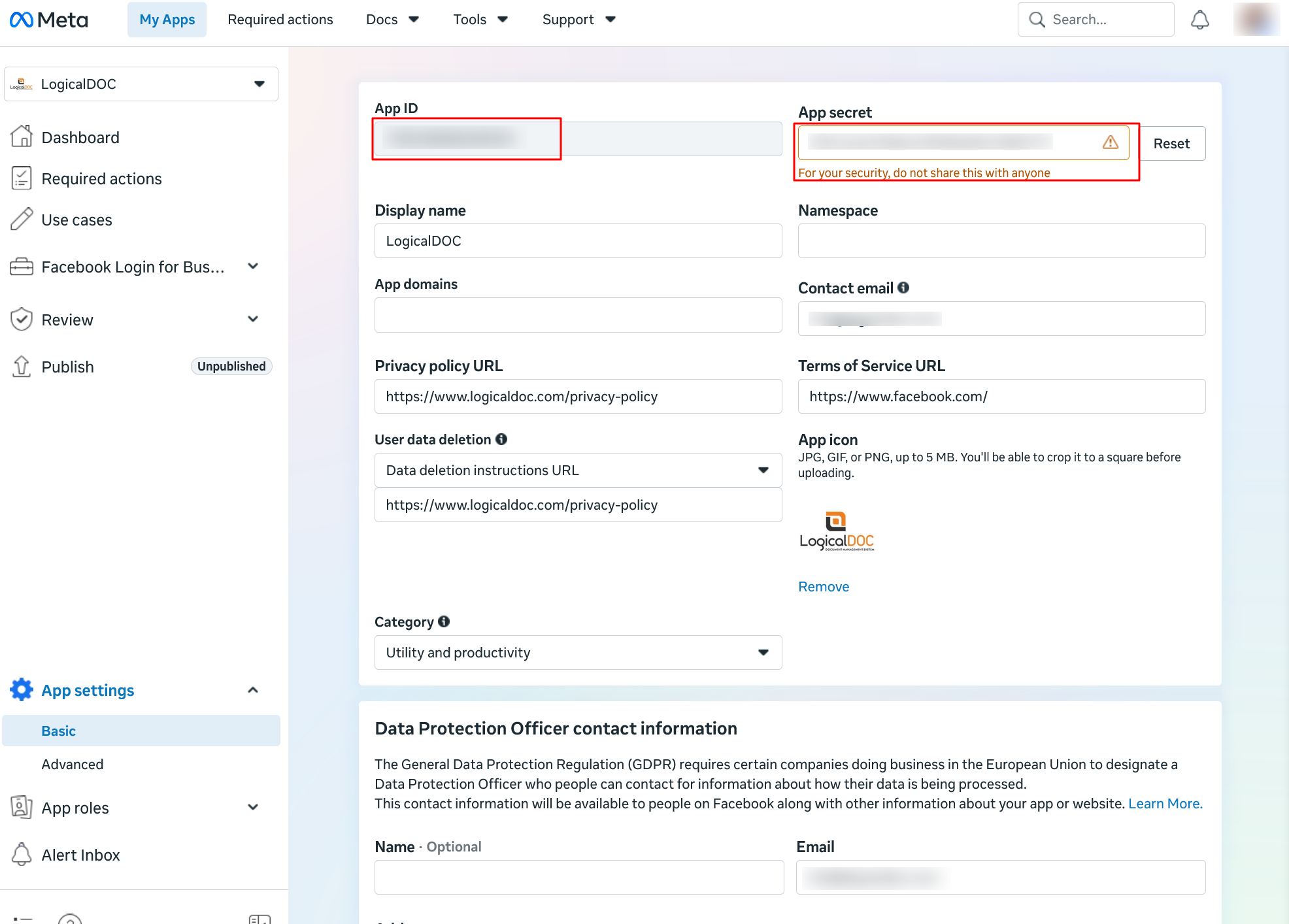
An App ID will be assigned as well as an App secret, plase save both somewhere for later usage.
3. Create the system user
Choose the System users item of the Users section and here click Add button to create a new system user with role Admin named WhatsappBot.
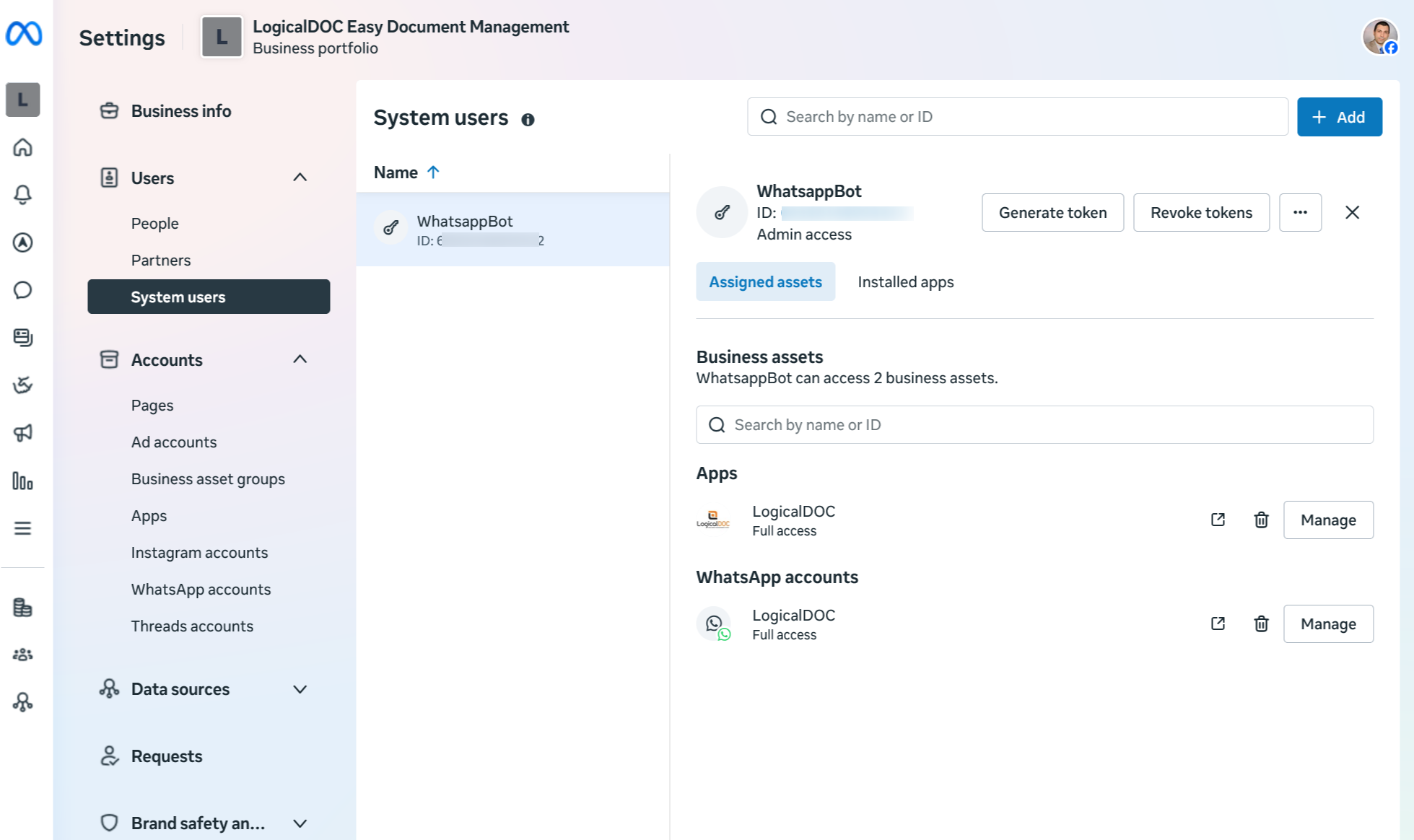
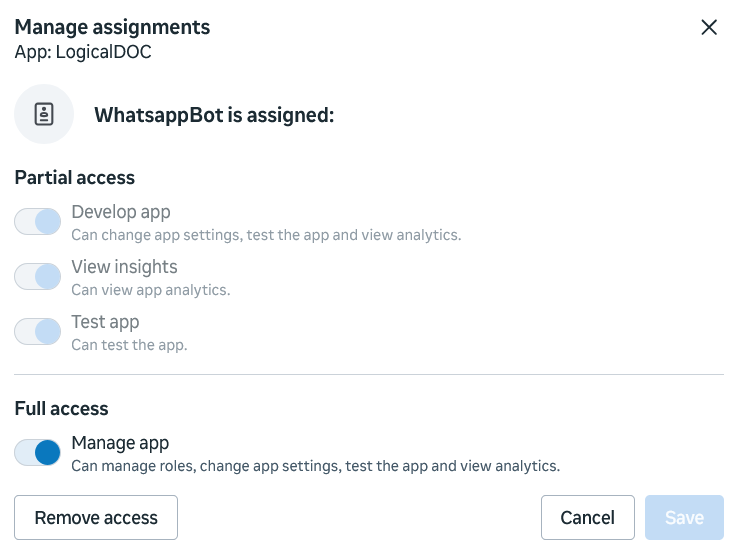
Make sure this new user has full control on app LogicalDOC.
Then click on button Generate token for app LogicalDOC.
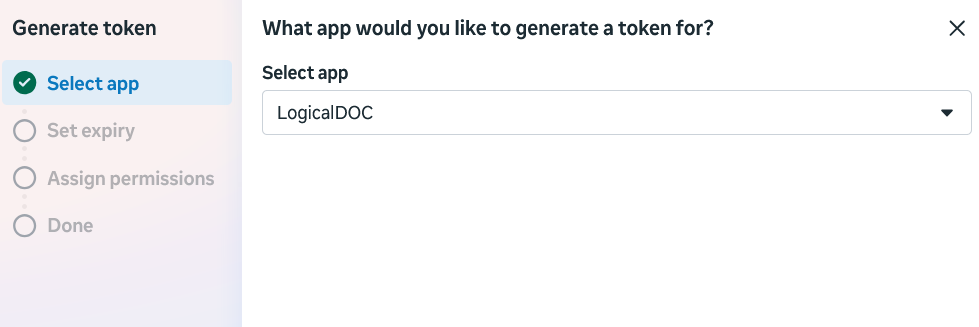
Remember to choose expiration never.
Leave all 3 standard permissions.
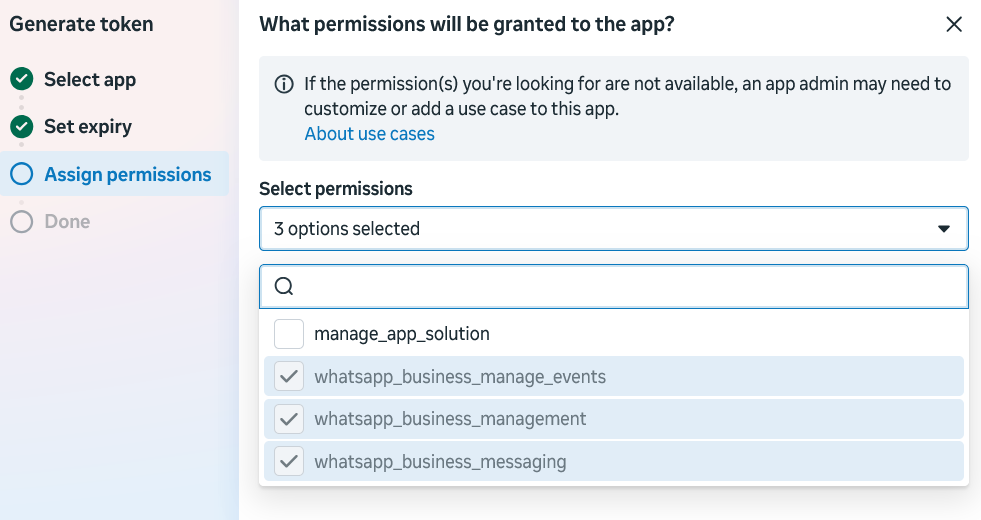
At the end save the token somewhere for later usage.
4. Confirm your phone number
In Whatsapp Manager at https://business.facebook.com/wa/manage/phone-numbers and add a landline
In order to confirm the number, Meta will call you at the given number by providing a confirmation PIN), please save that PIN for later use.
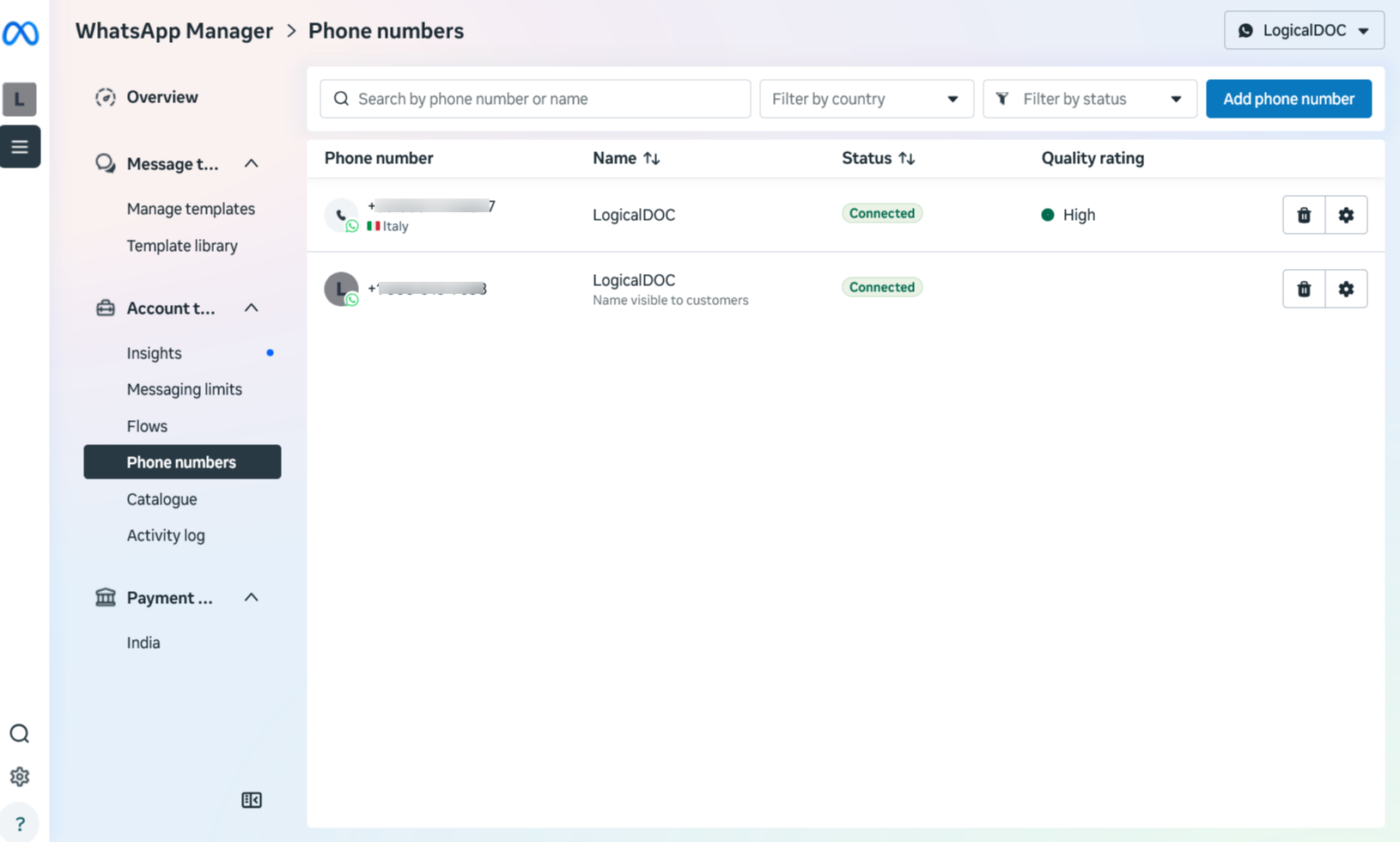
At the end, save the ID assigned to your number.
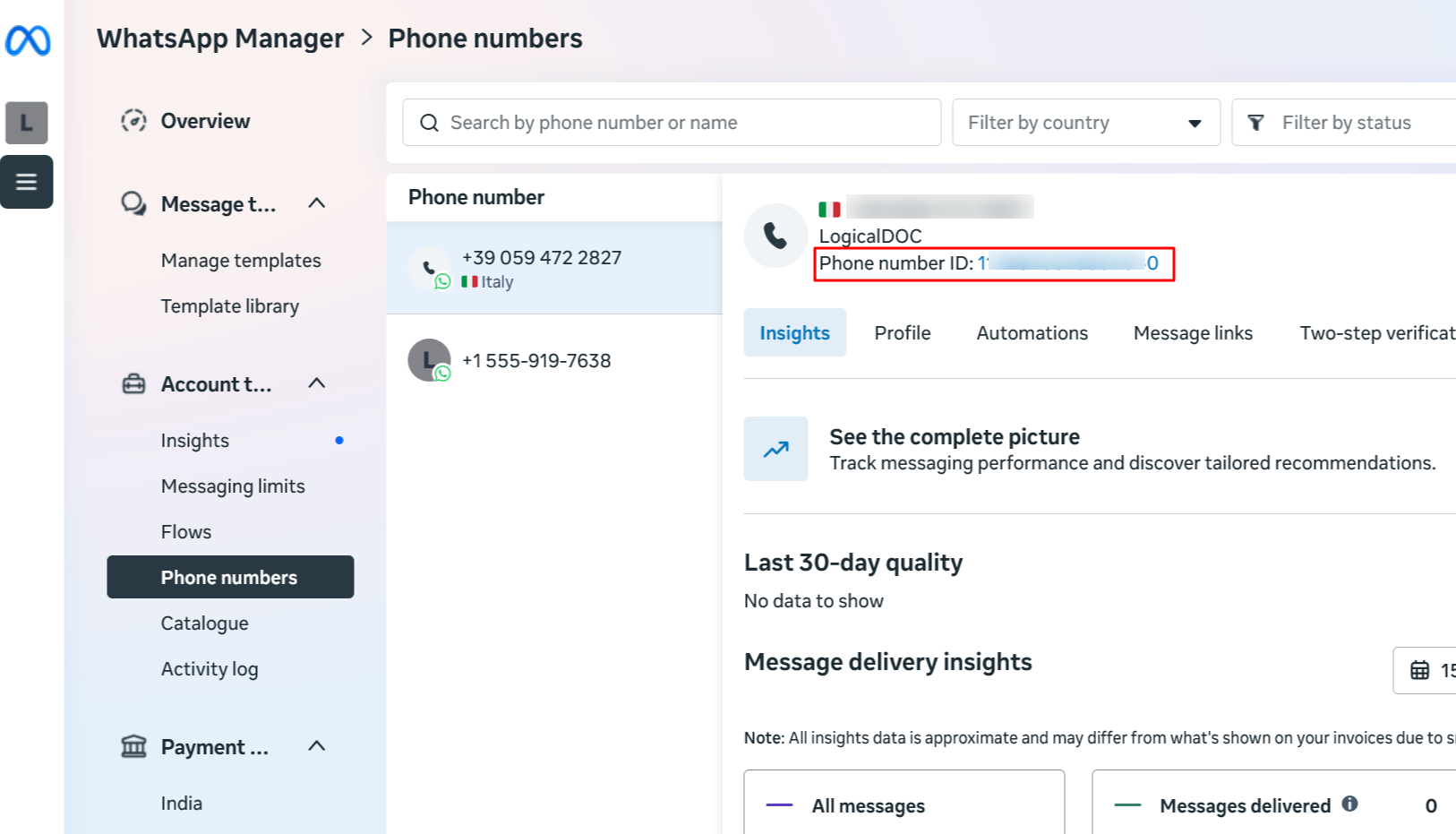
5. Configure LogicalDOC
In LogicalDOC, open the menu Administration > Settings > Whatsapp
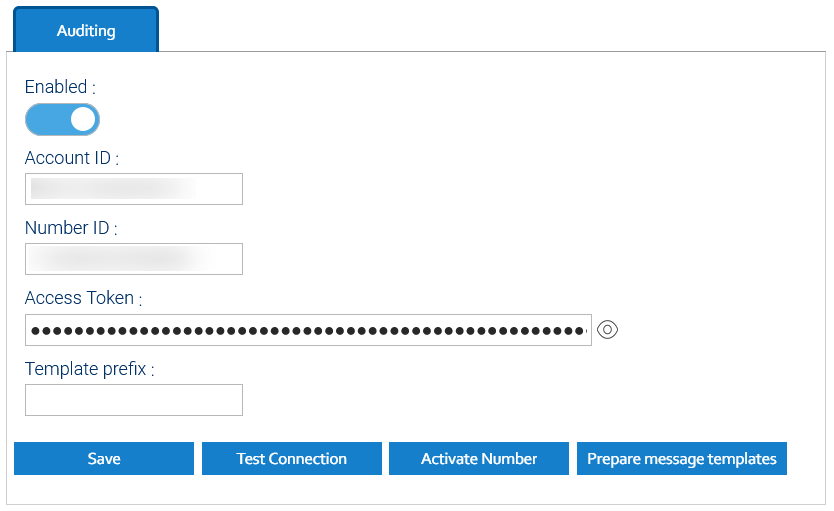
Here enable the feature an put all the connection parameter as already saved in the previous steps.
6. Activate the phone number
Before being able to send messages with the confirmed the phone number it must also be activated, so click the button Activate Number.
This step makes can also be done manually by making use use of whe Meta API directly that means invoking an URL with proper parameters, for instance you may use CURL for this task:
curl -i -X POST \
  https://graph.facebook.com/v25.0/<PHONE_NUMBER_ID>/register \
  -H 'Authorization: Bearer <TOKEN_GENERATED_FOR_WHATSAPPBOT>' \
  -H 'Content-Type: application/json' \
  -d '{
        "messaging_product": "whatsapp",
        "pin": "<CONFIRMATION_PIN_RECEIVED_BY_PHONE>"
      }'
7. Install the message templates
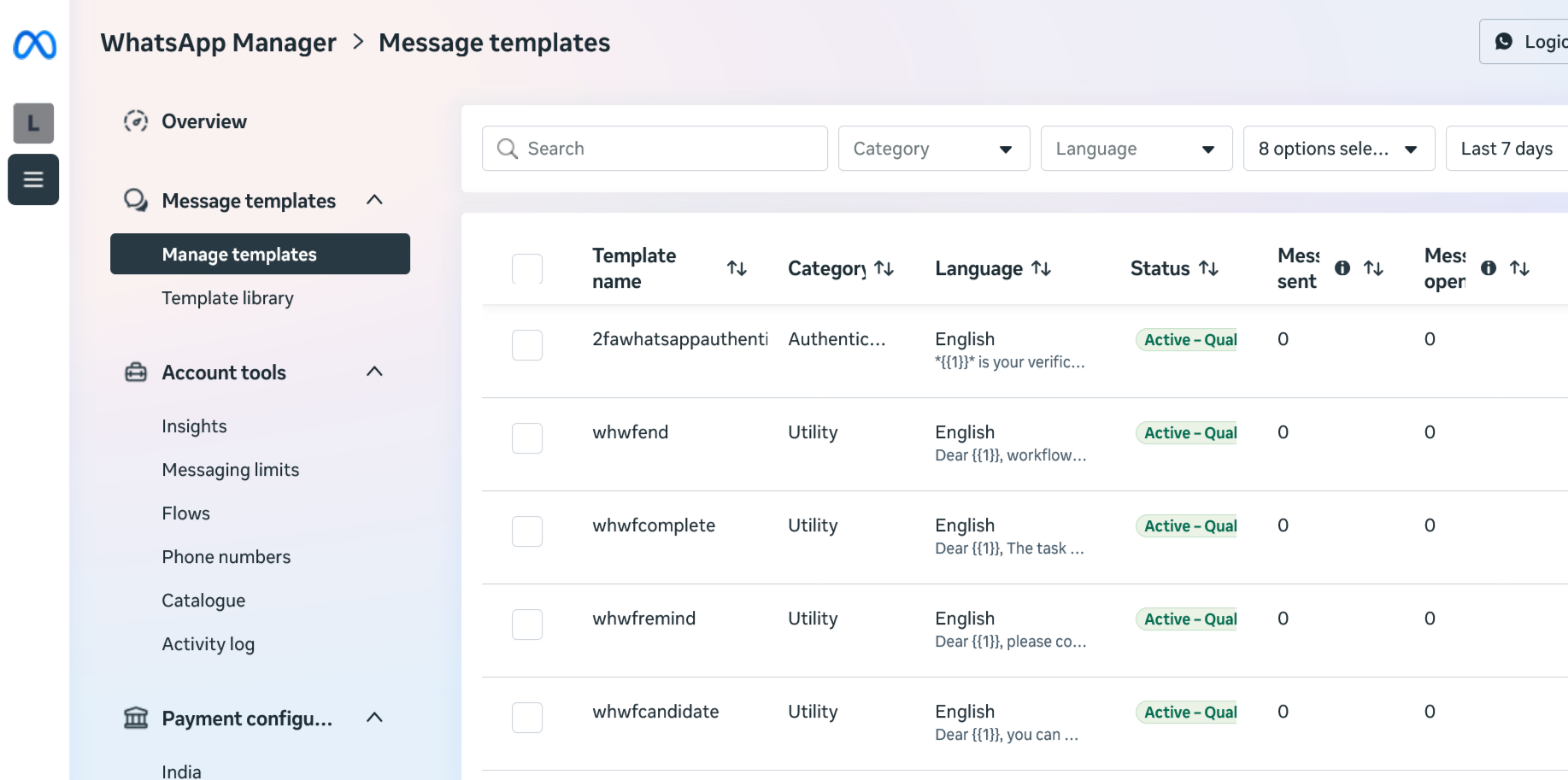
Click on Prepare message templates to generate in Whatsapp all the templates required by the LogicalDOC's notifications.
At this point Meta will validate and approve the templates and this may take even a couple of days, as soon as the templates gets approved, you can start using Whatsapp from LogicalDOC.