




Fillers
Fillers are configurable components used to extract and populate structured information from documents automatically. They define how specific data, such as tags, language, and templates, are identified and retrieved from document content.
Fillers are typically used in conjunction with document processing workflows to enable automated data extraction and reduce manual input.
Fillers Management
In Administration > Artificial Intelligence > Fillers, you can manage fillers from the dedicated panel.
The Filler panel provides a list of all configured fillers and allows you to:
- View existing fillers
- Create new fillers (Add filler)
- Edit filler configuration
- Delete fillers
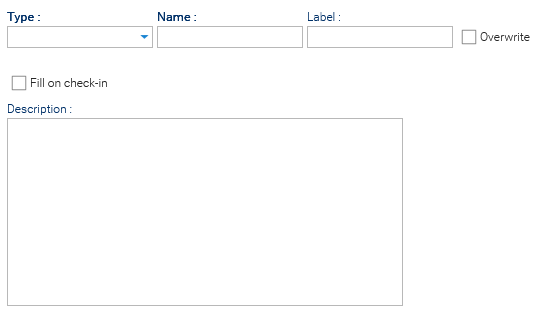
Each filler is displayed with the following attributes:
- Name: Internal identifier of the filler
- Label: User-friendly name shown in the interface
- Type: The extraction strategy used by the filler
- Description: Additional details about the filler’s purpose
- Overwrite: When checked, the filler overwrites the already filled information
- Fill on check-in: When checked, the document is automatically filled at check-in
When you create a new filler by clicking on Add filler, you will be required to specify one of the available fillers.
Filler Properties
Each filler is configured through the filler Properties panel, where you define how the extraction is performed and which technologies are used.
The configuration is dynamic: some fields appear or change depending on the selected filler type and strategy.
At the time of writing, you can choose among these filler types:
- Tag: Assigns a value to a field based on semantic similarity or classification
- Language: Assigns the document language based on content analysis
- Template: Assigns a document template based on semantic similarity
- Chain: Assigns values by combining multiple fillers in sequence
Tag Filler
With this filler you can automatically assign a set of tags. You must define a Strategy that determines how the value is retrieved, along with a Threshold value that defines the minimum confidence required to accept a result.

The available strategies are: AI Model and Semantic Similarity. Additionally, the selected strategy affects which additional fields are required.
- AI Model (Model-based)
Uses a machine learning model to classify or extract the value directly- Model: for the selection of a specific AI model (This setting must reference a previously configured model)

- Model: for the selection of a specific AI model (This setting must reference a previously configured model)
- Semantic Similarity (Retrieval-based)
Uses vector similarity search over embeddings to retrieve the most relevant content- Embedding Scheme: for the selection of a specific embedding scheme (This setting must reference a previously configured embedding scheme).

- Embedding Scheme: for the selection of a specific embedding scheme (This setting must reference a previously configured embedding scheme).
Language Filler
This filler is designed to atuo-detect the document's language. You must define a Model to specify the AI model used for extraction.

Template Filler
This is a specialized filler used to automatically assign a template to a document based on its content. It performs semantic classification, identifying which template best matches the document.
Attribute Filler using Object Detection
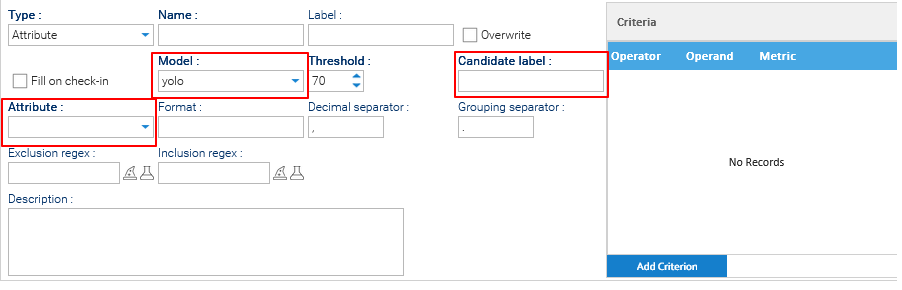
This filler makes use of Object Detection techniquest to fill a specific attribute. Beyond the basics, you must define three important parameters (Model, Candidate Label, and Attribute).
- Model: Select the YOLO model (see Object Detection for more information) that will be used to detect the desired region within the document.
- Candidate Label: Specify the name of the object class to detect. The value must exactly match one of the labels (categories) defined when the YOLO model was trained, for example DATE, TOTAL, or INVOICE_NUMBER. During processing, the model searches for detections with the specified label.
- Attribute: Select the document attribute that will receive the extracted value. Once the specified region has been detected, OCR is applied to that region and the extracted text is stored in the selected attribute.
Criteria
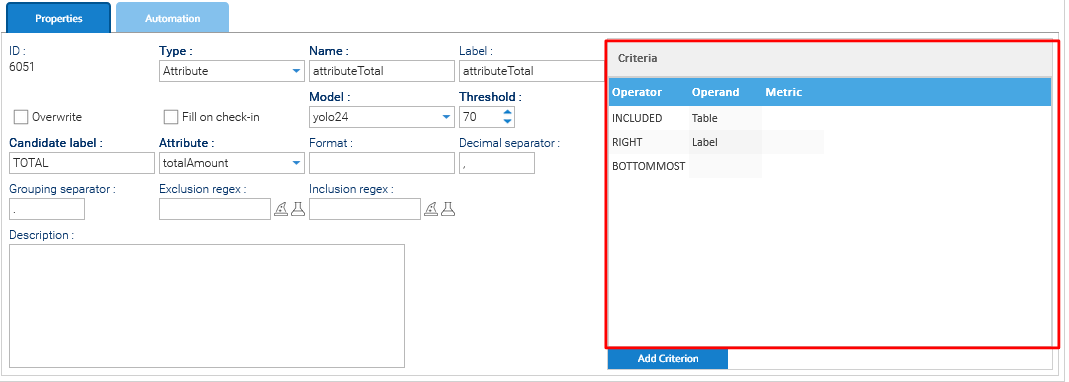
When it searches for a candidate label, the YOLO model may detect multiple objects belonging to the same category. For example, an invoice may contain several values labeled as TOTAL, DATE, or NUMBER.
Criteria allow you to identify the most appropriate candidate by evaluating its position relative to other detected labels. Each criterion that is satisfied increases the candidate's score. The candidate with the highest score is selected for OCR and subsequent processing.
A criterion consists of three components:
- Operator: Defines the spatial relationship to evaluate.
- Operand: The reference label used for the comparison.
- Metric: An optional distance value used only by distance-based operators.
Available operators:
| Operator | Description |
|---|---|
| Above | The candidate is above the operand label. |
| Below | The candidate is below the operand label. |
| Left | The candidate is to the left of the operand label. |
| Right | The candidate is to the right of the operand label. |
| Included | The candidate is completely contained within the operand label. |
| Topmost | The candidate is the highest among all labels of the specified operand type. |
| Bottommost | The candidate is the lowest among all labels of the specified operand type. |
| Leftmost | The candidate is the leftmost among all labels of the specified operand type. |
| Rightmost | The candidate is the rightmost among all labels of the specified operand type. |
| Max Distance | The candidate is within the specified maximum distance from the operand label. |
Attribute Filler using ZonalOCR or Barcode Filler
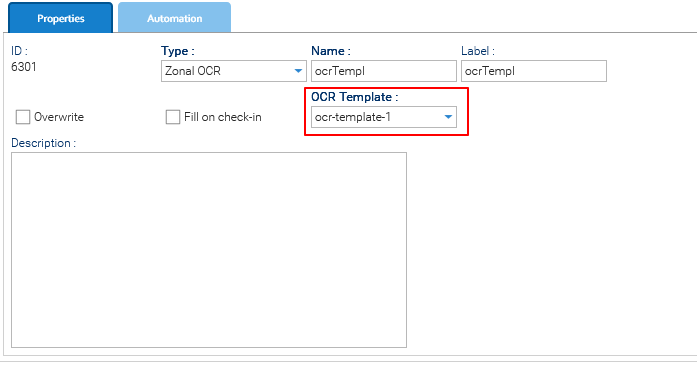
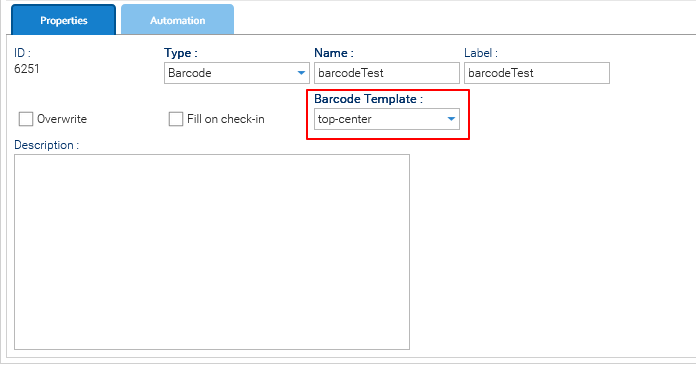
The Zonal OCR and Barcode fillers are used to automatically populate document attributes by extracting information from the document according to a configured template.
When using the Zonal OCR or Barcode filler, you must select the corresponding OCR Template or Barcode Template to use for processing the document.
The selected template defines how information is extracted from predefined zones or barcodes and used to populate the corresponding document attributes.
The selected template must be compatible with the document's template. If the required template does not exist or is not compatible with the document, processing is skipped.
Chain Filler
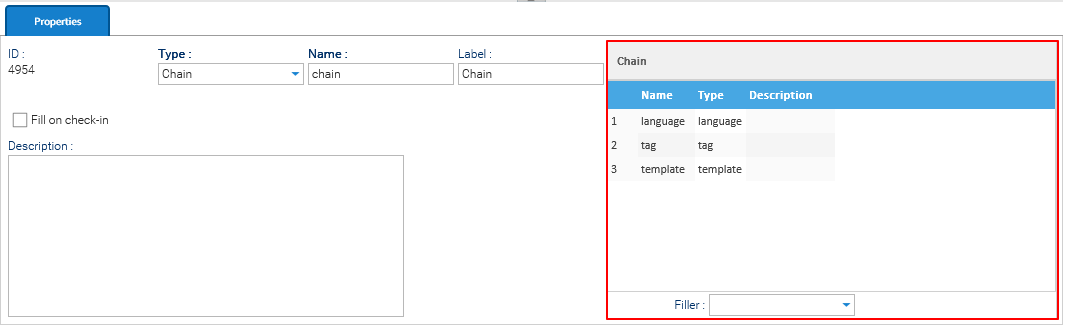
This filler acts as a pipeline of multiple fillers executed in sequence. You must define a chain of fillers in the table on the right side of the panel.
In this case, the table allows you to:
- Add fillers to the chain
- Reorder execution (drag & drop)
- Remove fillers
Automation
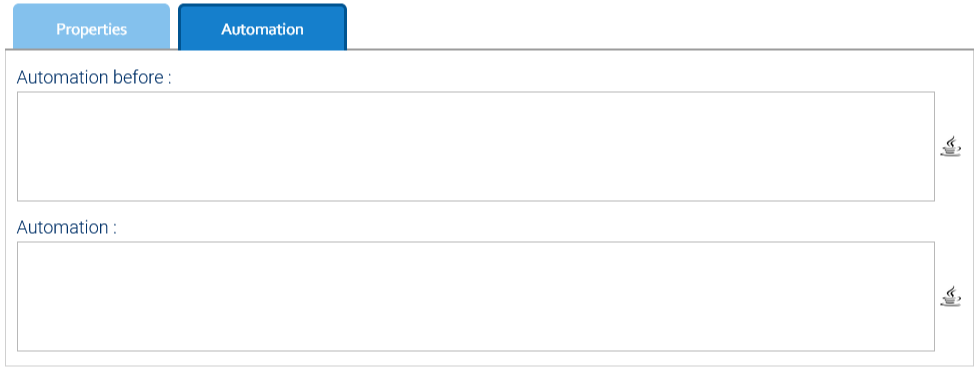
You can execute your own automation script before and after each filler execution.
Dictionary available for the Automation in this context
| AUTOMATION CONTEXT: FILLER | ||
|---|---|---|
| Variable | Java Class | Description |
| filler | ExtensibleObject | the same filler currently in execution |
| document | Document | the document being filled |
| transaction | DocumentHistory | the current event |
| value | Value | holds the string representation of the filled value |
| fillerDictionary | Map | dictionary of the current filling execution pipeline |
Read the Automation manual for more information.