Recommended Update Procedure
This procedure is dedicated to on-premise users and requires LogicalDOC to have Internet access. If you are running an old version of the software or if LogicalDOC cannot directly access the Internet, you can configure a proxy server. If neither option is available, please follow the manual update guide.
If you are a Cloud user, please refer to the dedicated cloud update guide.
1
Backup your System
- Read instructions on how to backup and restore
- Be sure to be able to roll back to the previous version in case you have problems
- Remember that we are not liable for loss of data if you don't have a valid backup
- Launch the backup
2
Download the update package
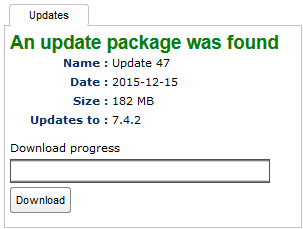
- Enter LogicalDOC as admin and go to Administration > General > Updates and Patches > Updates here if a new update package is available, click the Download button and wait for the completion
3
Run the update
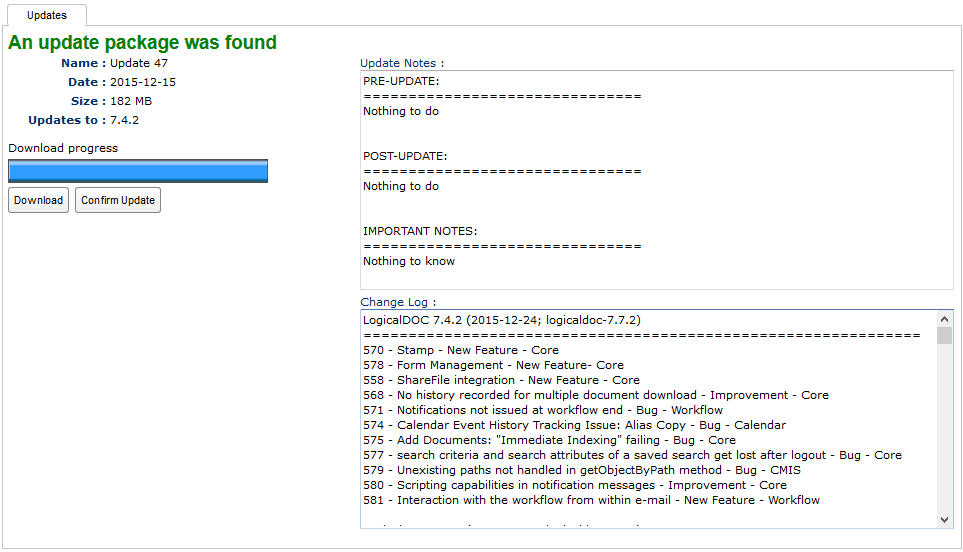
Carefully read the Update Notes
Before running the update you must carefully read the Update Notes that display important information you must be aware of and also indicate if you have to take specific actions before and/or after the update.
Windows only: An update for the Microsoft Visual C++ Redistributable may be required
Recent LogicalDOC versions use native libraries (e.g. ONNX Runtime) that require an up-to-date Microsoft Visual C++ Redistributable. Installations created with older versions may not have it, or may have an outdated one. Without it, LogicalDOC may fail to start or crash unexpectedly after the update.
Before clicking Confirm Update, download and install the latest x64 Redistributable from Microsoft: https://aka.ms/vs/17/release/vc_redist.x64.exe
If it is already installed, run the installer anyway to update it to the latest version.
If LogicalDOC is stopped or terminated by your antivirus (e.g. BitDefender, Sophos), add the LogicalDOC installation folder, or at least its tomcat\temp folder, to the antivirus exclusions.
- Once the update package is downloaded, the system shows important notes you have to know before updating. Please execute the activities described in the pre-update section and then click on Confirm Update
4
Confirm the update
- Clear the browser's cache(read instructions on how to clear the cache)
- Enter the system as admin user
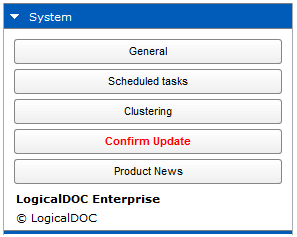
- Go to Administration and here click on Confirm Update