

Prepare the Database on macOS

In order to set up a production system, you have to prepare a MySQL database where the application will store all data.
To perform this step, make sure to have a MySQL up and running, if this is not the case install it: http://dev.mysql.com/downloads/mysql/

Once your MySQL instance is up and running, please open a terminal and execute this command:

$ sudo su

Setting Password for MySQL Root User

Execute the following commands at a shell prompt:

$ /usr/local/mysql/bin/mysqladmin -u root password 'password'

Type your password as requested in order to login as the root user.

Creating the database

Connect to mysql prompt typing the command:

$ /usr/local/mysql/mysql -u root -ppassword

Execute the following commands at the mysql prompt:

CREATE DATABASE logicaldoc;

Now we have an empty database called logicaldoc with a user root that can access it using password password.
You can exit the mysql prompt (command \q) and go ahead.

Post-installation

OS X uses launch daemons to automatically start, stop, and manage processes and applications such as MySQL.
But sometimes the installation process can go wrong, or perhaps you run an upgrade of your Mac and MySQL will not start at boot...
To fix this problem, you just need to add a special file into your /Library/LaunchDaemons directory, so please refer to the Oracle's MySQL reference manual to better understand the procedure:

https://dev.mysql.com/doc/refman/8.0/en/osx-installation-launchd.html

Attention

Directories and executable files inside the StartupItems and LaunchDaemons folder should have permissions of 0755 with the owner set to "root" and group set to "wheel." Other (non-executable) files should have permissions of 0644 with the owner set to "root" and group set to "wheel."
Install the Application on macOS

Get from the download website the setup file: installer-linux-<ver>.zip

To install LogicalDOC unpack the zip archive, open a terminal window and execute the command from command line:

$ java -jar logicaldoc-installer.jar

When the installer asks for database, please put your connection parameters as specified earlier during database preparation, don't use the embedded database for production.

Post-installation

To start LogicalDOC at server bootstrap you need to copy the startup script logicaldoc-all.plist into your StartupItems directory so execute the command:

$ cp /LogicalDOC/bin/logicaldoc-all.plist /Library/LaunchDaemons
$ chown root:wheel /Library/LaunchDaemons/logicaldoc-all.plist
$ chmod 0644 /Library/LaunchDaemons/logicaldoc-all.plis

Attention

Directories and executable files inside the StartupItems and LaunchDaemons folder should have permissions of 0755 with the owner set to "root" and group set to "wheel." Other (non-executable) files should have permissions of 0644 with the owner set to "root" and group set to "wheel."

Configure LogicalDOC

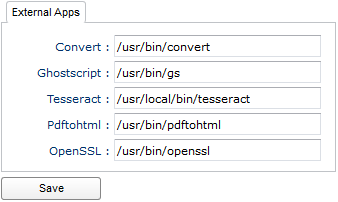
After the installation of LogicalDOC you will have to configure some paths in the administration.

Enter the administration area: Administration > Settings > Client & External Apps

Here put the following paths:

  • Convert: /usr/local/bin/convert
  • Ghostscript: /usr/local/bin/gs
  • Tesseract: /usr/local/bin/tesseract
  • Pdftohtml: /usr/local/bin/pdftohtml
  • Openssl: /usr/bin/openssl

NOTE: paths may be different in your system

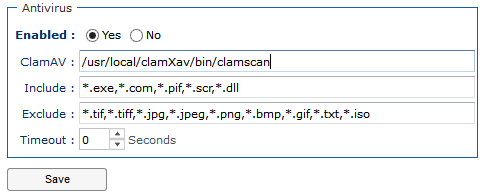
Enter the administration area: Administration > Security > Antivirus

Here, put the following paths:

  • ClamAV: /usr/local/clamXav/bin/clamscan

NOTE: paths may be different in your system

Configure the format converters

You may want to address at this time the configuration of the format converters you want to use to render the previews, and in particular the converter that uses Libre Office, please read the Format Converters Guide.

Save

Save