




Object Detection
Object detection is a computer vision technique that identifies and locates multiple objects within an image by predicting their classes and positions using bounding boxes. Unlike image classification, which assigns a single label to an entire image, object detection detects individual objects and determines where they appear.
In document processing, object detection can locate elements such as invoice numbers, dates, customer and supplier information, totals, logos, signatures, and payment details.
LogicalDOC uses object detection to identify relevant regions within business documents before text extraction. By isolating the areas of interest, OCR can be applied only where needed, improving the accuracy of data extraction and enabling automated document-processing workflows. Typical applications include invoice processing, purchase order management, contract analysis, form processing, and the extraction of structured information from business documents.
YOLO Models
LogicalDOC supports object detection models based on the YOLO (You Only Look Once) architecture. YOLO is a family of deep-learning models designed for real-time object detection that analyzes an image in a single pass and predicts both the class and location of detected objects.
Trained YOLO models can be imported into LogicalDOC and used to detect document regions during processing, enabling the extraction of structured information from scanned or digital documents.
Prerequisites
Before using Object Detection, a trained YOLO model must be available in LogicalDOC.
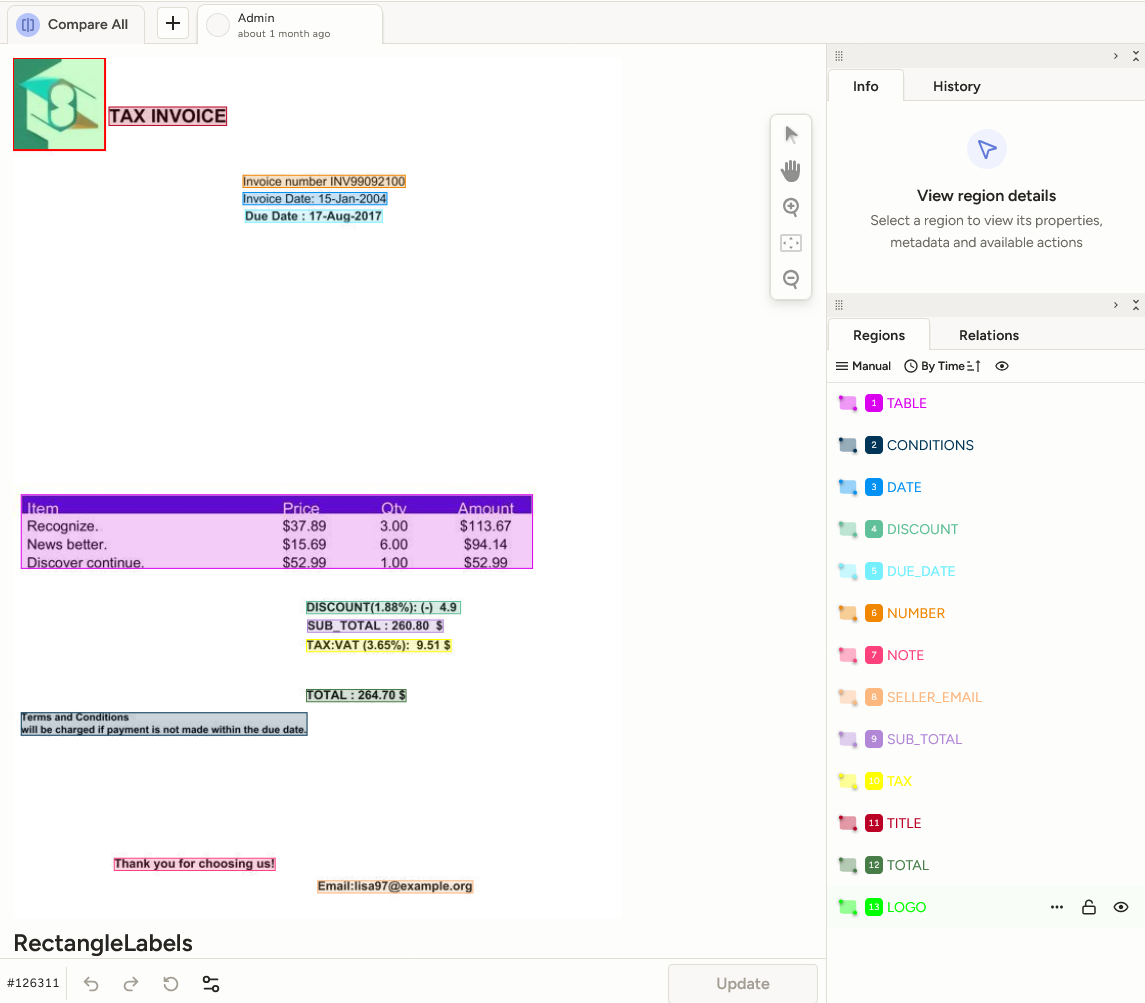
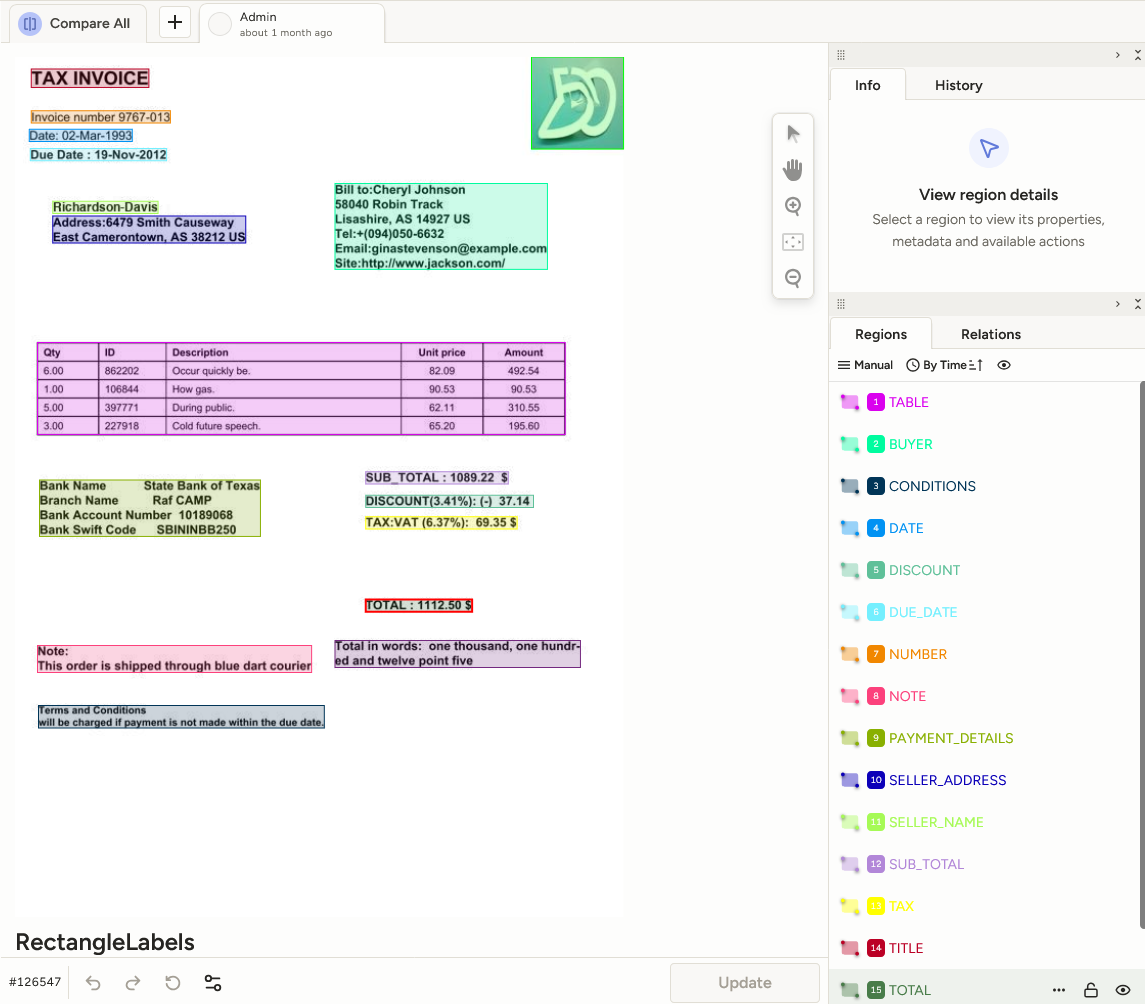
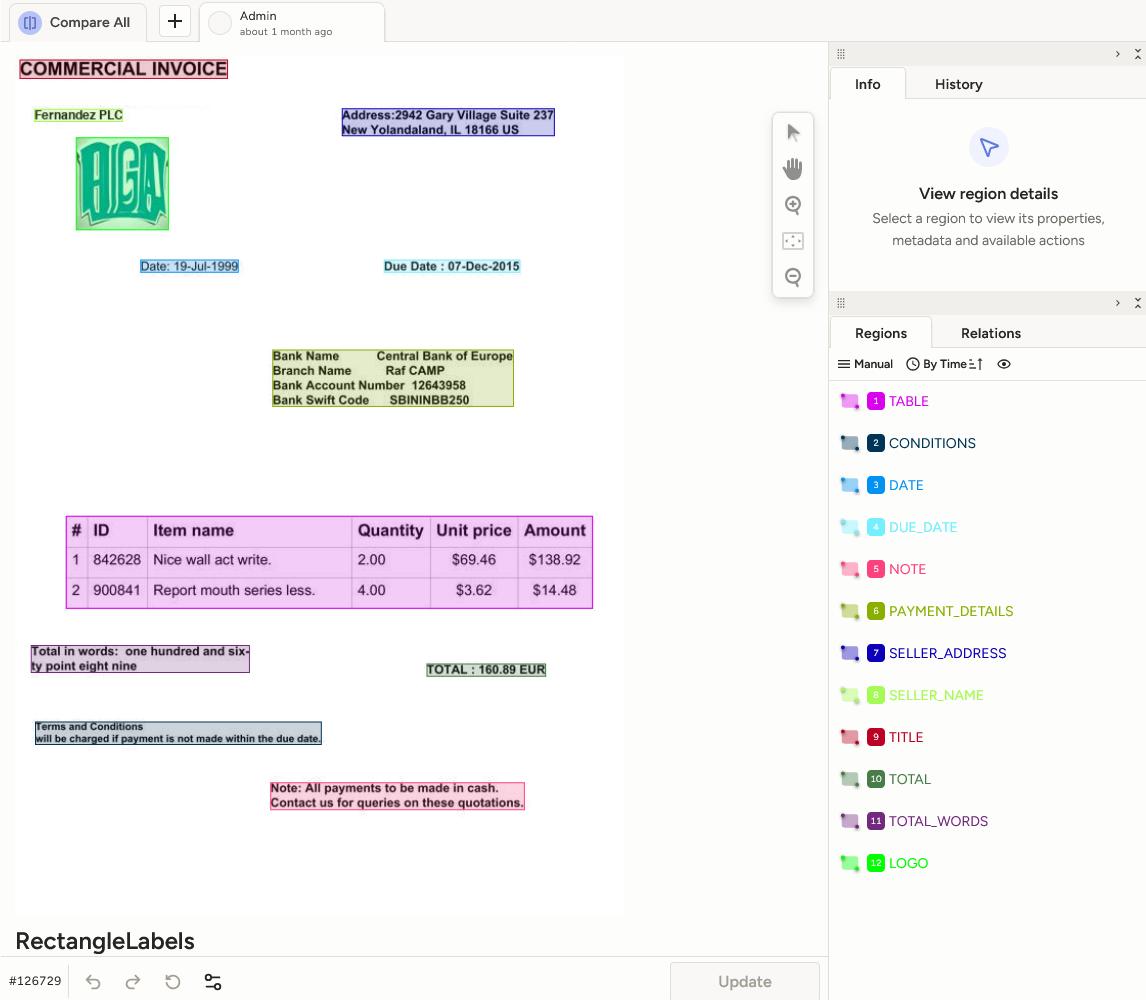
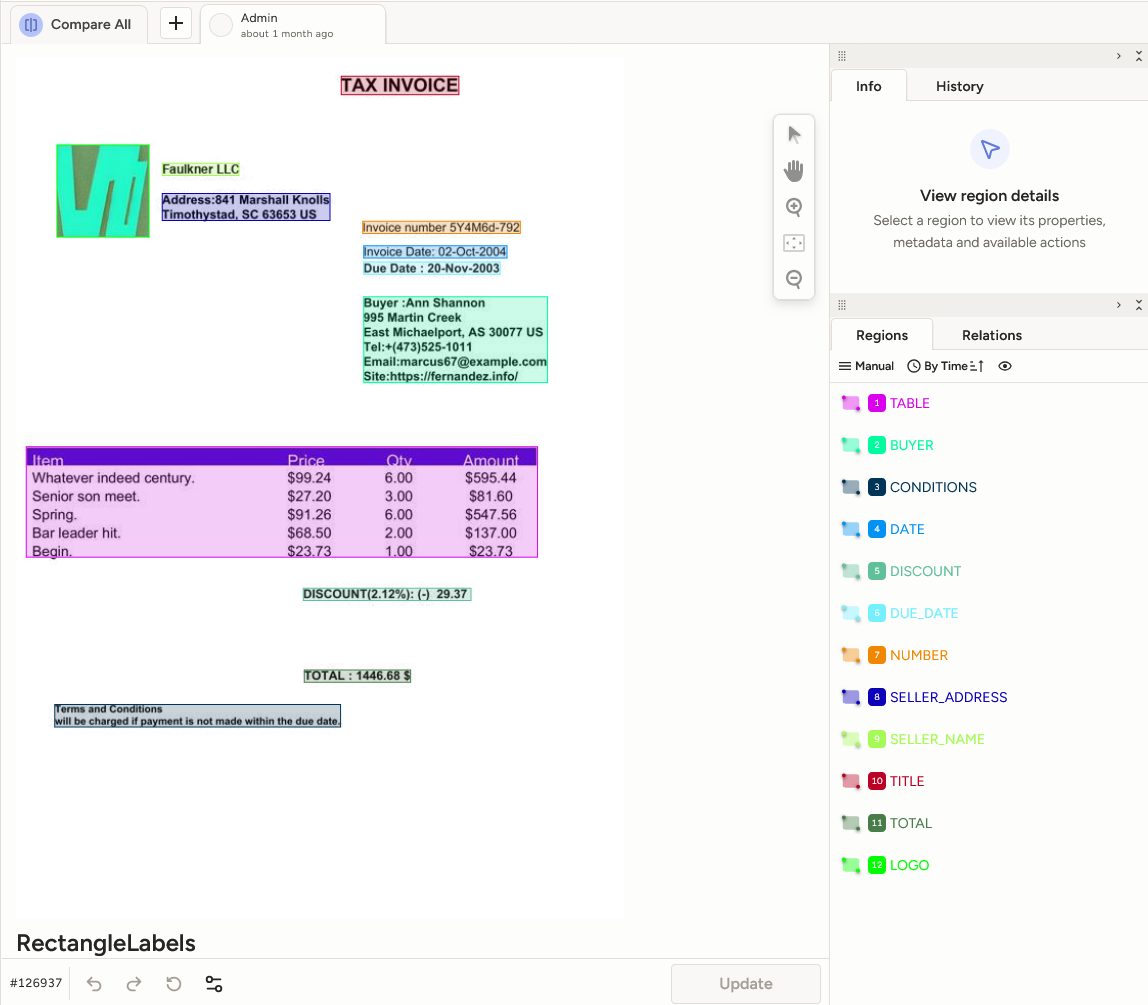
The model must be trained on an annotated dataset. Document images can be annotated using tools such as Label Studio (see the Label Studio Wiki Guide or the Label Studio Website), after which the trained YOLO model can be imported into LogicalDOC for inference.
These images are just an example of annotated documents, for more insight please visit the resources linked previously.
Typical Workflow
The typical Object Detection workflow consists of the following steps:
- Create a project and upload document images in Label Studio.
- Annotate the document elements that should be detected.
- Export the annotated dataset.
- Train a YOLO model using the exported dataset (see YOLO Training Pipeline).
- Import the trained model into LogicalDOC.
- Execute detections on new documents.
- Review and use the detected regions in downstream processing workflows
Supported Use Cases
Object Detection is particularly useful for documents that contain information in predictable locations or visual structures. Typical examples include invoices, purchase orders, application forms, contracts, shipping documents, and other structured business documents.
The detected regions can subsequently be used by OCR engines, AI classifiers, or custom automation workflows to extract and process document information.
Creating a YOLO Model
In Administration > Artificial Intelligence > Models, add a new model and select the type YOLO.
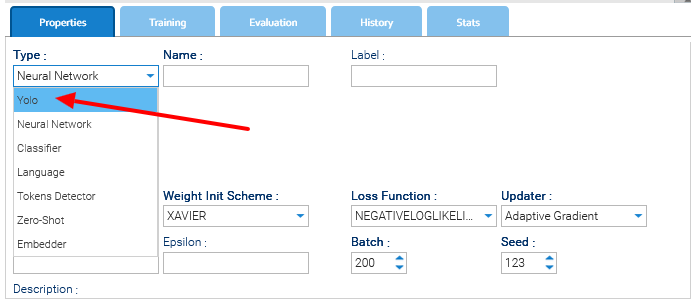
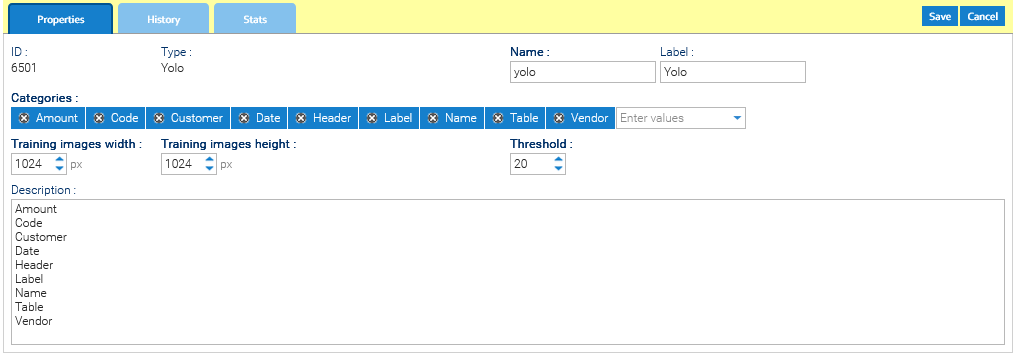
When creating the model, specify the Name and Label, then configure the model-specific properties:
- Categories: the list of object classes that the model can detect, also known as Labels. These must match the classes used during training.
- Training images width and Training images height: the dimensions (in pixels) of the images used to train the model. These values must match the training configuration.
- Threshold: the minimum confidence score required for a detected object to be accepted. Detections with a confidence score below the threshold are discarded. Lower values return more detections but may include false positives, while higher values return fewer, more reliable detections.
Info
For the correct functionality of the created model, the Categories and Training images width/height must match the settings used during the training phase.
Once the YOLO model has been created in LogicalDOC, right-click the model and select Import to upload the trained .onnx model file.
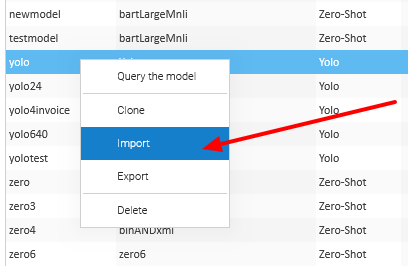
For more informations about how to import your already trained model please refer to Install a Trained Model article.