Send a document by Email

To send a document as a mail attachment, first select a document. The next step is to select the Send by Email item from the context menu. It will be shown as an email composer in which you can insert the recipients that will receive your message.
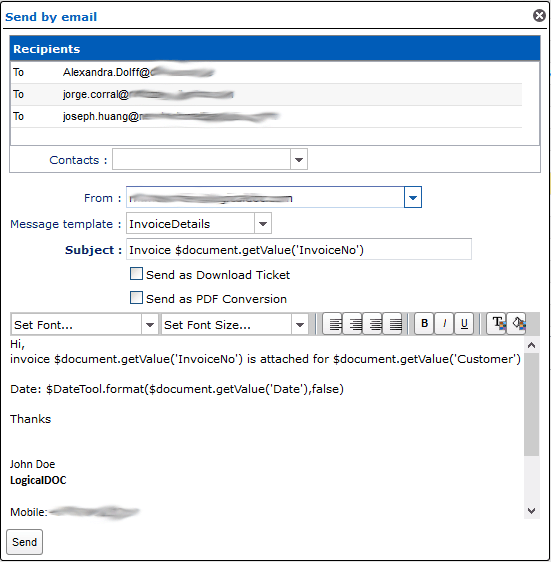
These are the fields you can complete:

  • Recipients: list of email addresses that will receive the document(recipients are not required to be system users)
  • From: one of your sender addresses as specified in your profile
  • Subject: A brief description of the content
  • Template: Optionally select one of the available templates
  • Message: The body of the message

Press Send to send the compiled email with the document as an attachment. If you select more than one document, they will all be added to the email as attachments.

You can also check the flag Send as Download Ticket. If you choose this option, instead of sending the document as an attachment, LogicalDOC will create a new download ticket and append an Internet link to the message body. The download ticket has an expiry time configured by the administrator. If the recipient clicks on this link, the document will be downloaded directly from the repository. The download ticket option will not be available if more than one document is selected.

In the Subject and in the Body, you can use the Automation to dynamically compose the content.

Dictionary available for the Automation in this context

AUTOMATION CONTEXT: SEND MAIL
VariableJava ClassDescription
senderUserthe user sending the email message
documentDocumentfirst attached document
documentsDocumentcollection of attached documents

Read the Automation manual for more information.

Managing contacts

In LogicalDOC you can handle your own contacts address book by entering in the menu Account > Contacts.
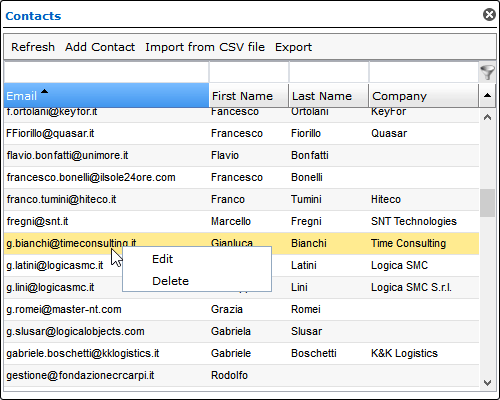
This allows you to import and export contacts in CSV format or directly create/modify/delete contacts through the web interface. These contacts will be available during email composition.

Properly configure the SMTP connection

To permit LogicalDOC to send emails, you must configure the connection to an SMTP server in the administration.

Adding Bookmark

Bookmarking folders is a common operation that allows you to quickly access your most important folders. To add new bookmarks, you have to select the folder you want and then click on the [Add bookmark] context menu item.

Once the bookmark has been created, you can check that it appears in the general [Bookmarks] section in the accordion panel on the left side.  Here you can see the complete list of your bookmarks, by clicking on a bookmark you will be redirected to the referenced folder, or you can use a context menu to edit and delete existing bookmarks.

bookmark

Convert to different formats

Thanks to a configurable converter system, you can convert a document to another different format.

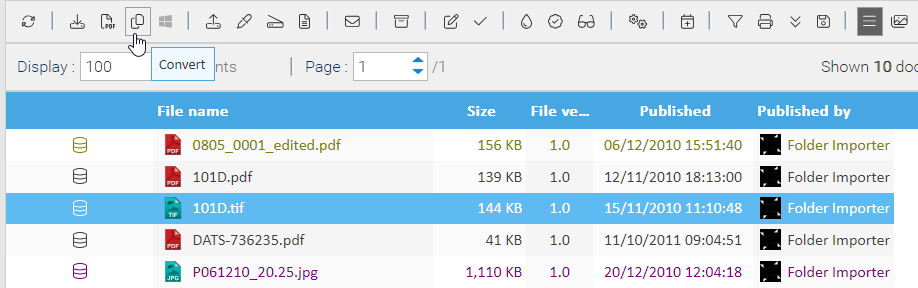
To convert a document, just select it and click on the Convert icon of the toolbar.

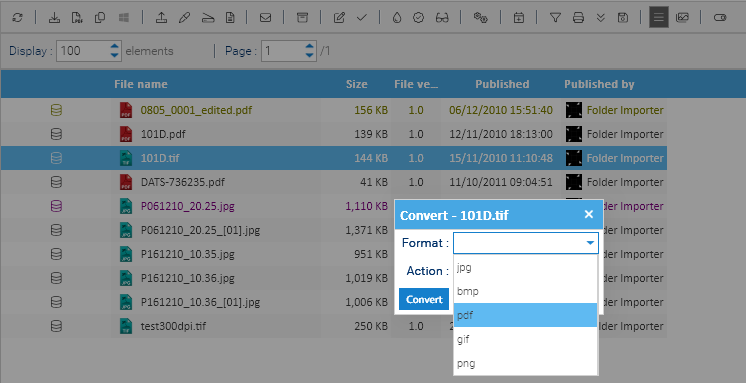
Then in the popup window you can select one of the available output format and if you want to download the converted file or save it inside LogicalDOC in the current folder.

See also: Format Converters

Attention

The Conversion feature may not work if the proper converter is not correctly configured and/or not licensed.

Export as PDF

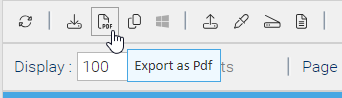
The Export as PDF icon of the toolbar is a shortcut for downloading the PDF conversion of the selected document.

If your selection consists of several documents, they will all be combined into a single PDF file.

Compare documents and versions

Thanks to a configurable comparison system, you can compare two documents of the same format.

To compare two documents, just select them, then right click and in the context menu choose More > Compare.


LogicalDOC Data Source

Compare different versions

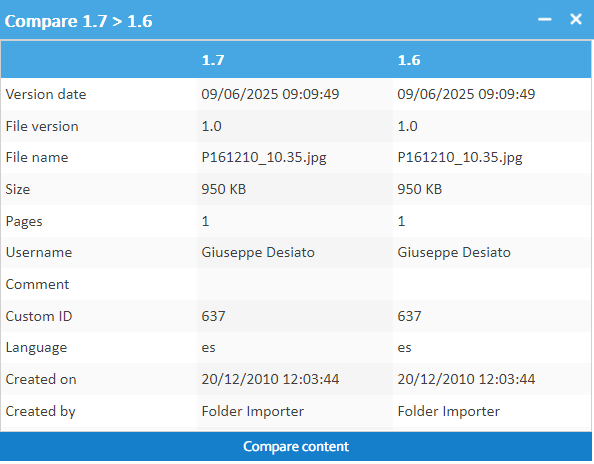
You can compare two different versions of the same document. In the Versions tab just select two versions and in the context menu choose Compare metadata.

The popup shows the differences in the properties:

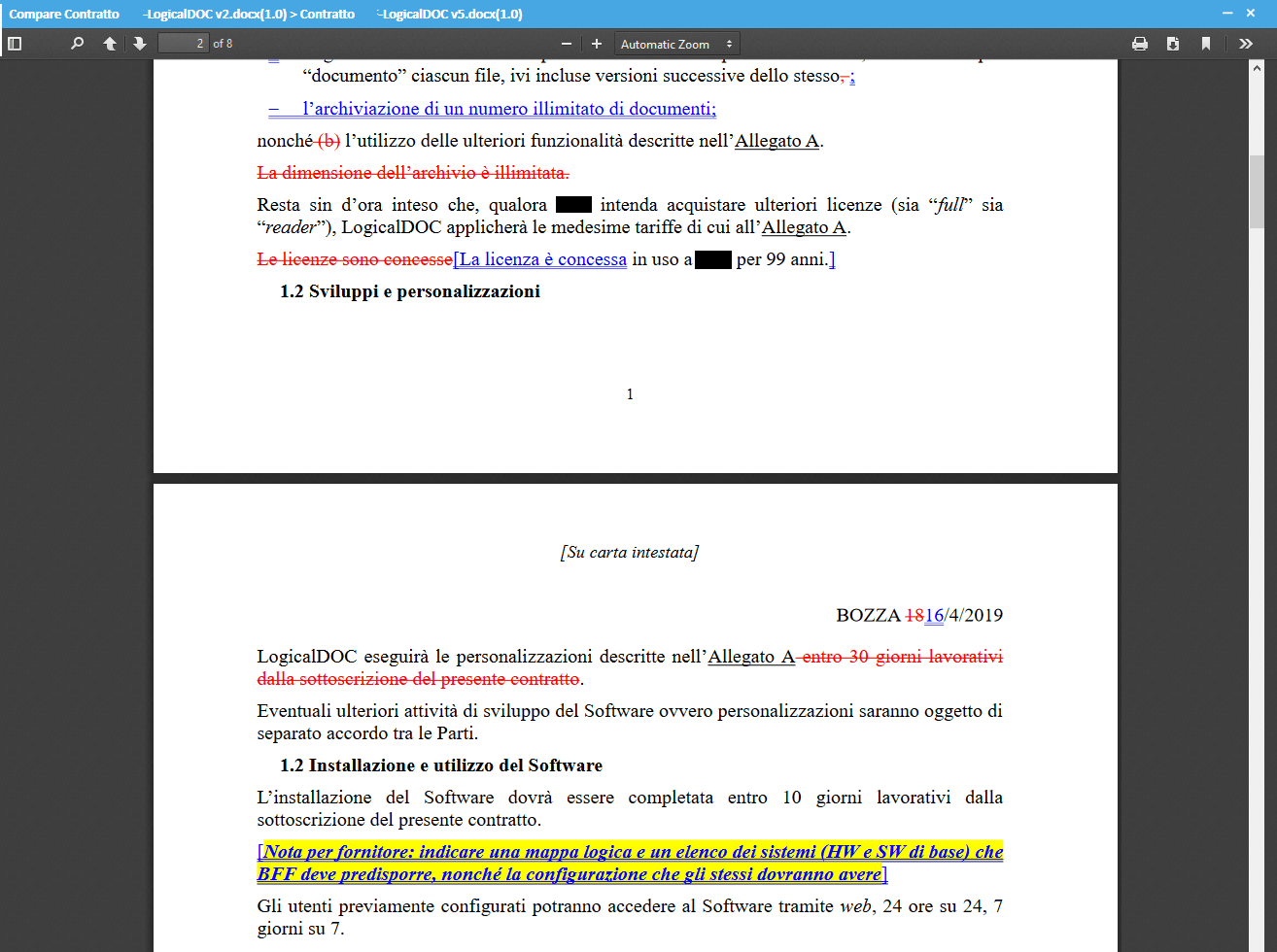
Now click on Compare content to display the comparison between the two files.

See also: Comparators

Split a PDF and Merge

Split

Sometimes you upload a big PDF and you need to split it in different segment, you can do this using a set of policies.

To split a file, select it, then right click and in the context menu choose More > Split.

Here, you can choose among this list of splitting policies:

Policy Description
all pages each page of the original file will be saved in a new PDF
selection of pages you specify a selection of pages separated by comma. In the Expression field, you specify the page ranges. E.g. 1,2-5 generates a new PDF with containing just the first page and another PDF containing pages 2,3,4 and 5
blank page as separator the blank pages are interpreted as separators and each segment will be saved in a new PDF
barcode as separator the pages containing a barcode are interpreted as separators, and each segment will be saved in a new PDF. In the Expression field, you can define a regular expression to be matched by the barcode. E.g. SEPARATOR means that the barcode's value must have the value 'SEPARATOR'
text as separator the pages containing a given text are interpreted as separators, and each segment will be saved in a new PDF. In the Expression field, you must define the text to use as separator
 

Click on Split to start the process. The original file is not altered, and the segments are stored as additional documents in the current folder. You need the Write permission in the current folder to use this feature.


Merge

Instead of divide a single document in more segments, you may need to merge different PDFs into a single document. To do so, just right-click on a selection of files and choose More > Merge. You are asked to provide the name for the new file that will be saved in the current folder.

The selected files are appended in the same order as they appear in the selection into a single resulting PDF.