

8080 is required

Instructions for the Trial

--env="MYSQL_DATABASE=logicaldoc" --env="MYSQL_USER=ldoc" --env="MYSQL_PASSWORD=changeme" mysql:5.7 $ docker run -d -p 8080:8080 --env LDOC_USERNO=your_userno --link mysql-ld logicaldoc/logicaldoc You should be able to access LogicalDOC at...

Install with Docker

--env="MARIADB_USER=ldoc" --env="MARIADB_PASSWORD=changeme" mariadb:11.8 $ docker run -d --name=logicaldoc -p 8080:8080 -p 8022:22 --env LDOC_USERNO= --env DB_ENGINE=mariadb --env DB_HOST=logicaldoc-db --link logicaldoc-db logicaldoc This command...

Install from Command line

After that, LogicalDOC is in execution and you have to perform the first setup, just point your browser to: http://localhost:8080/setup If the browsers ask you the credentials, use admin / admin to access to the Web Setup Procedure. In the first step,...

Format Converters

file into PDF serverLocalUrl: base url to be used to rewrite the references to LogicalDOC resources (eg: http://localhost:8080) CoolUtilsConverter Uses the Cool Utils applications installed in the server machine imageConverter: absolute path of the...

Get system info by invoking REST webservice

to point to your LogicalDOC installation #set($url = $clazzUrl.getConstructor($clazzString).newInstance("http://localhost:8080/services/rest/system/getInfo")) $log.info("url: $url") # Open the connection to the remote server #set ($con =...

Install the Application on Linux

$ /etc/init.d/logicaldoc-all start Now you can access the program using the browser, pointing it to http://localhost:8080/. Use the account admin with password admin to enter the first time. Check the paths of external tools After the installation, it...

License Activation

is installed in and the your_server_port is the working port as defined during the installation(by default it is the 8080).
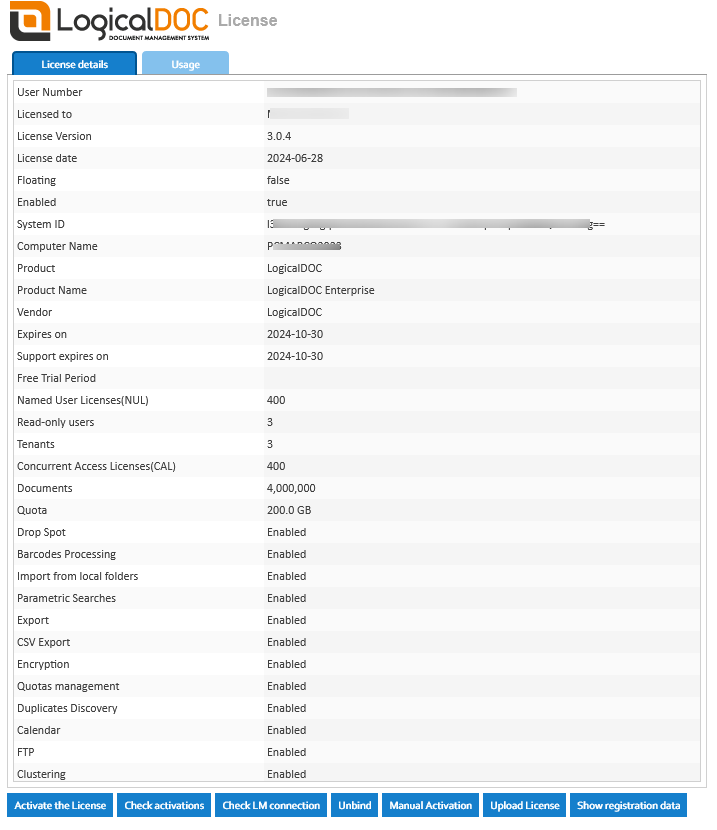
License Page
[alert...

License Management

LogicalDOC is installed in and your_server_port is the working port as defined during the installation(by default it is the 8080).
License Page
[alert...

Manual Activation

LogicalDOC is installed in and your_server_port is the working port as defined during the installation (by default it is the 8080).
License Page
[alert...

Install on QNAP

width="400" group="qnap-logicaldoccontainer"/] Map the ports Open the Network tab and map the Container Port 8080 to the Host Port 1280 and the 22 to 1222: [lightbox2 title="LogicalDOC ports"...

Install on Synology

width="400" group="syno-logicaldoccontainer"/] Map the ports When asked to set up the ports, map the Container Port 8080 to the Local Port 1280 and the 22 to 1222: [lightbox2 title="LogicalDOC ports"...

Install the Application on Ubuntu

$ sudo service logicaldoc-all start Now you can access the program using the browser, pointing it to http://localhost:8080/. Use the account admin with password admin to enter the first time. Check the paths of external tools After the installation it...

Configure SAML with Okta

put a unique identifier (you may put here the same URL you normally use to connect to LogicalDOC, e.g. http://localhost:8080) Enable both the signature of the AuthRequest messages and the encryption of received assertions Choose SHA-256 as Signature...

Configure SAML with JumpCloud

put a unique identifier (you may put here the same URL you normally use to connect to LogicalDOC, e.g. http://localhost:8080) Enable both the signature of the AuthRequest messages and the encryption of received assertions Choose SHA-256 as Signature...

Install the Application on Windows

Server), don't use the embedded database for production. At the end of installation, point the browser to http://localhost:8080/ and enter with: Username: admin Passowrd: admin Check the paths of external tools After the installation it is better to...