
Split a PDF and Merge

Split

Sometimes you upload a big PDF and you need to split it in different segment, you can do this using a set of policies.

To split a file, select it, then right click and in the context menu choose More > Split.

Here, you can choose among this list of splitting policies:

Policy Description
all pages each page of the original file will be saved in a new PDF
selection of pages you specify a selection of pages separated by comma. In the Expression field, you specify the page ranges. E.g. 1,2-5 generates a new PDF with containing just the first page and another PDF containing pages 2,3,4 and 5
blank page as separator the blank pages are interpreted as separators and each segment will be saved in a new PDF
barcode as separator the pages containing a barcode are interpreted as separators, and each segment will be saved in a new PDF. In the Expression field, you can define a regular expression to be matched by the barcode. E.g. SEPARATOR means that the barcode's value must have the value 'SEPARATOR'
text as separator the pages containing a given text are interpreted as separators, and each segment will be saved in a new PDF. In the Expression field, you must define the text to use as separator
 

Click on Split to start the process. The original file is not altered, and the segments are stored as additional documents in the current folder. You need the Write permission in the current folder to use this feature.
 

Merge

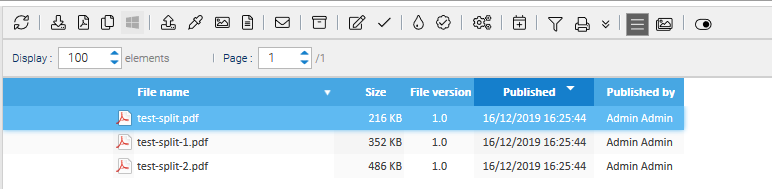
Instead of divide a single document in more segments, you may need to merge different PDFs into a single document. To do so, just right-click on a selection of files and choose More > Merge. You are asked to provide the name for the new file that will be saved in the current folder.
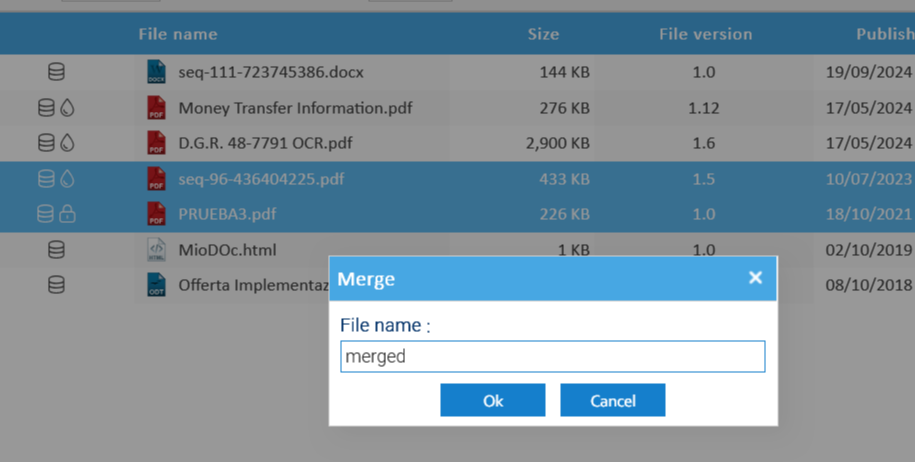
The selected files are appended in the same order as they appear in the selection into a single resulting PDF.
Tickets

Tickets are unique codes bound to special links that can then freely distributed to give access to a specific document to people not registered in the system.

Only those users with download permission can create a ticket. If you have such a permission, then right-click on a document and select More > Ticket

A ticket may lead to download or just preview the document.

Download Ticket

When a recipient clicks on a Download Ticket, the document gets downloaded.

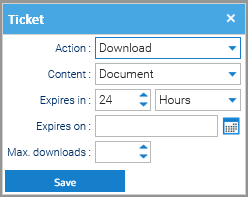
These are the fields you can fill:

  • Content: You may want to refer to the original document, or it's PDF conversion
  • Expires in: a validity period since the current time (this is ignored if you specify an exact expiration date)
  • Expires on: an exact expiration date
  • Max downloads: maximum number of admitted downloads
  • Password: the password that must be typed in order to get access to the content

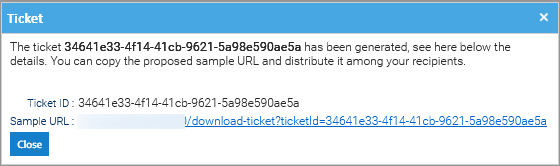
Press Save and the generated link will be shown to you in a popup window, please copy it in your clipboard and distribute it to your audience.

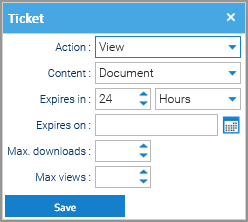
View Ticket

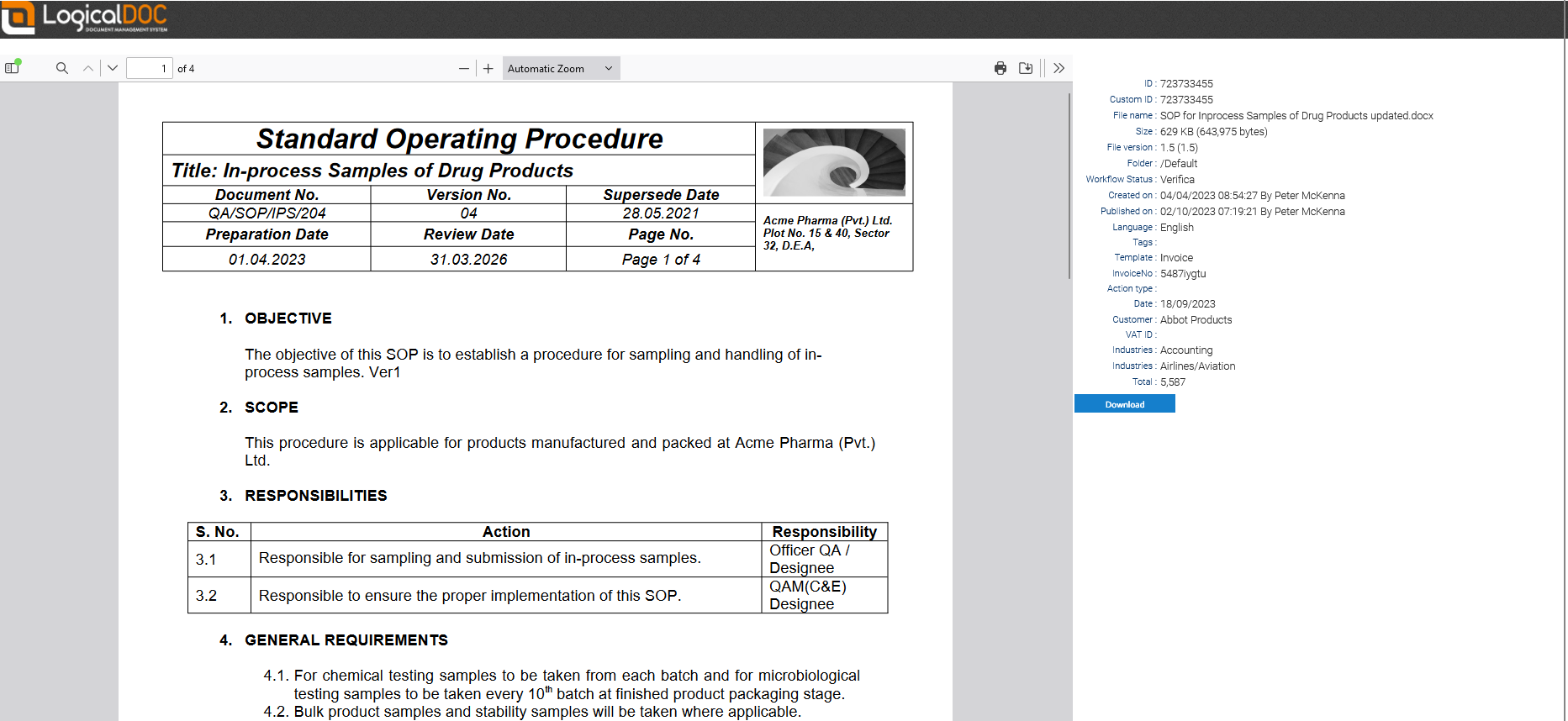
When a recipient clicks on a View Ticket, it is routed to a web page where he can see both the preview and all the metadata of the document.

These are the fields you can fill:

  • Content: You may want to refer to the original document, or it's PDF conversion
  • Expires in: a validity period since the current time (this is ignored if you specify an exact expiration date)
  • Expires on: an exact expiration date
  • Max downloads: maximum number of admitted downloads (put zero to disable the download at all)
  • Max. views: maximum number of admitted views
  • Password: the password that must be typed in order to get access to the content

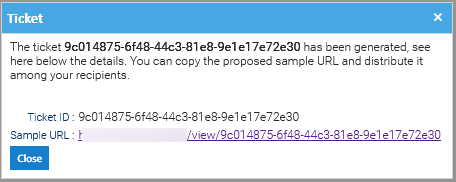
Press Save and the generated link will be shown to you in a popup window, please copy it in your clipboard and distribute it to your audience.

When the recipient clicks the link, he will see a web page showing the preview and also the download button:

View Ticket