
Working with Documents

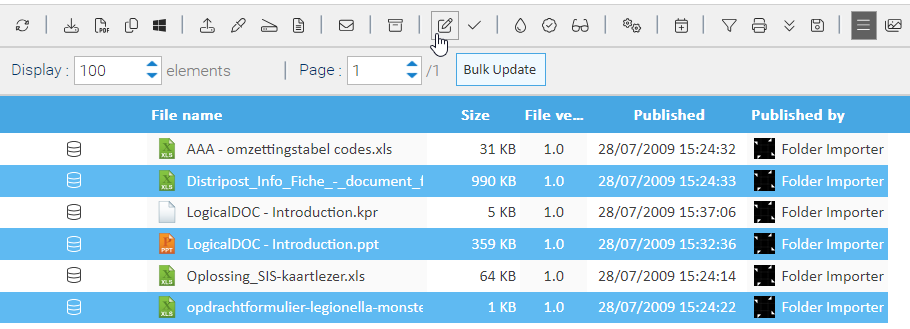
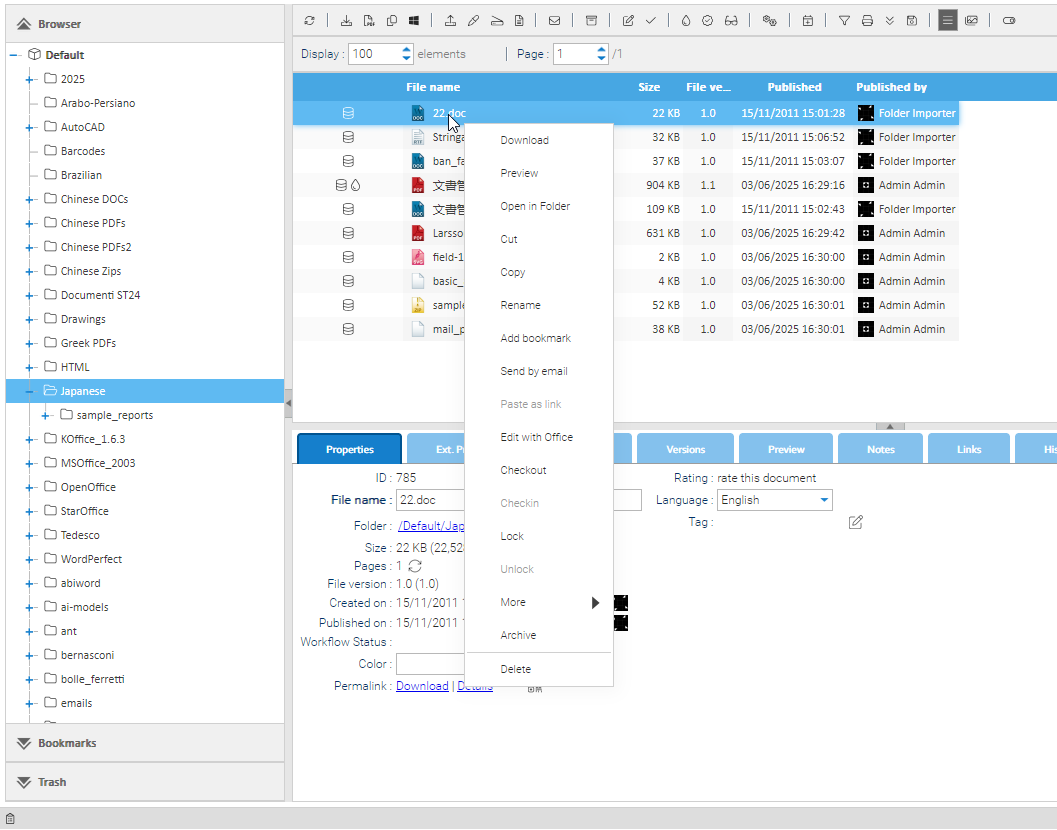
You can work on documents by accessing the Documents area. Click on a folder in the browser, and on the right side, a grid will show you all the documents that it contains.

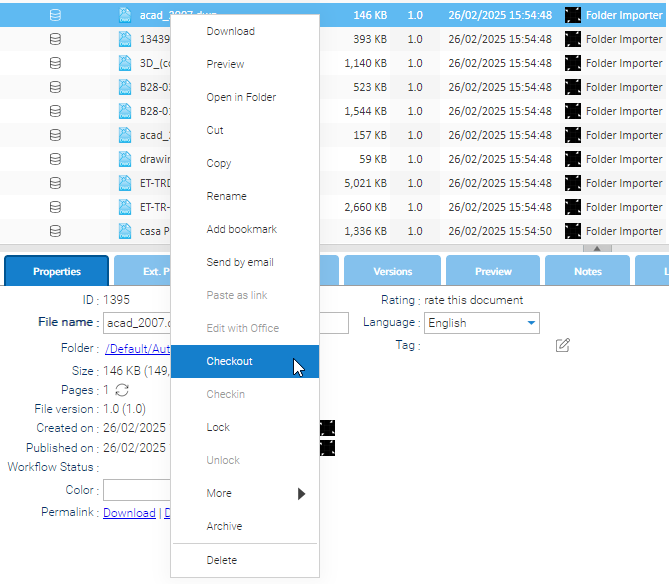
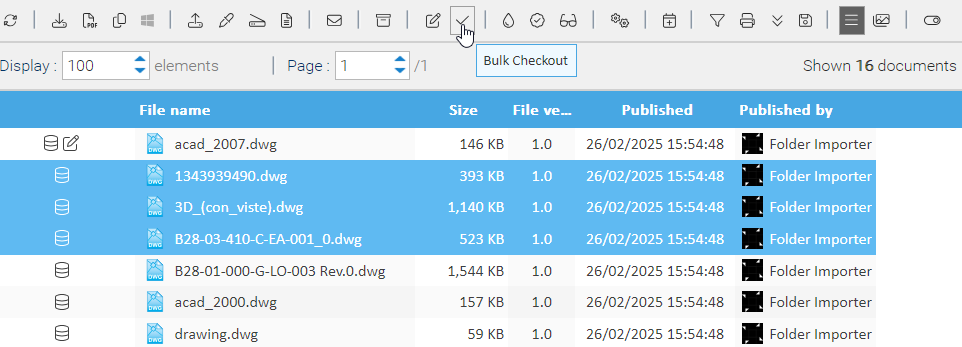
The documents grid allows the selection of multiple elements, while a contextual menu will show all the allowed operations on the selection.

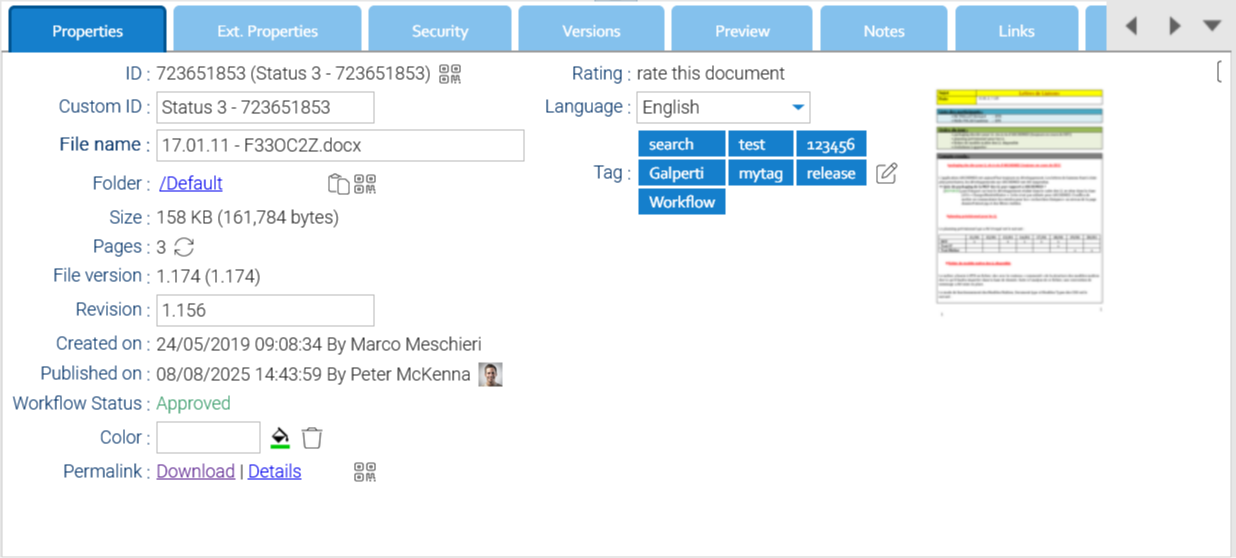
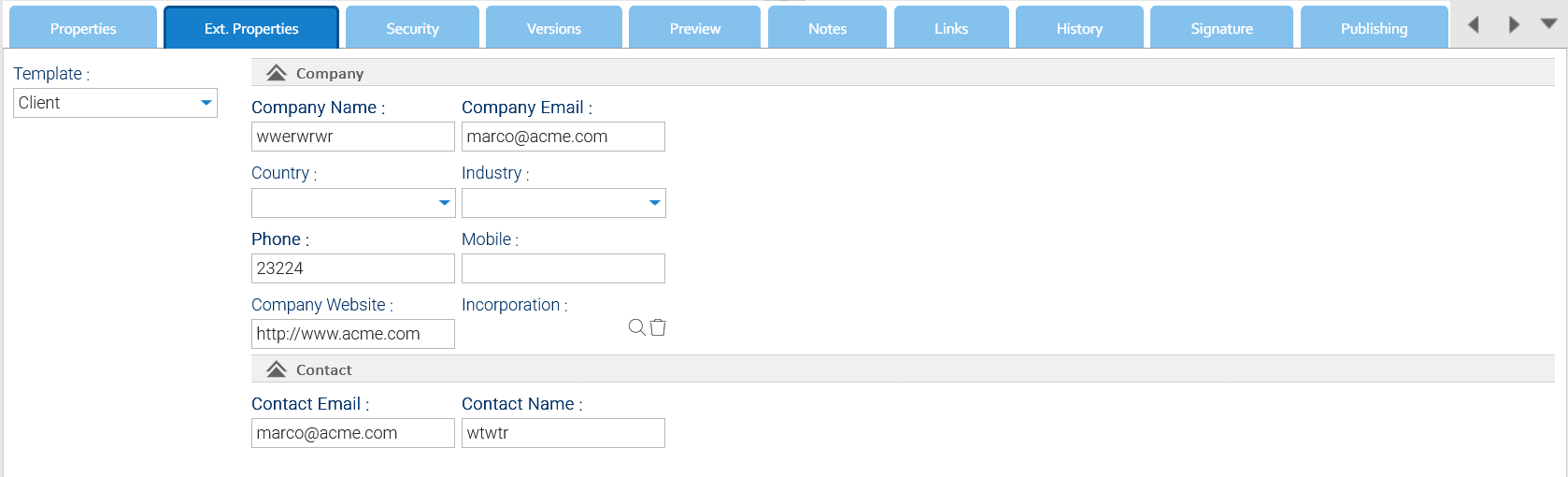
If you click on a single document, a set of panels will appear below, showing you all the metadata.

The first 100 records are shown by default. However, this can be changed by using the Display button of the toolbar. For each record, a set of icons will show the status of the document, indicating if it is already indexed, checked out, signed, etc.

The following are the most important status icons:

Document indexed and full-text searchable
Document is immutable and cannot be altered
Document locked. Only the administrator or the owner can unlock it
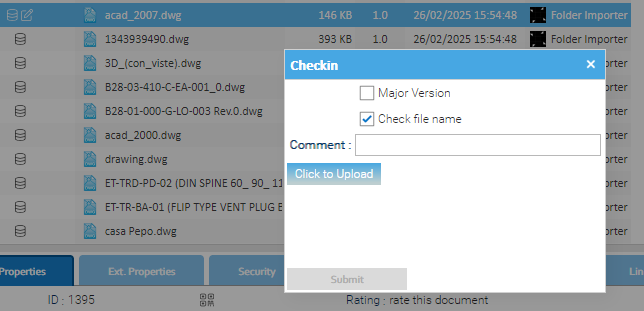
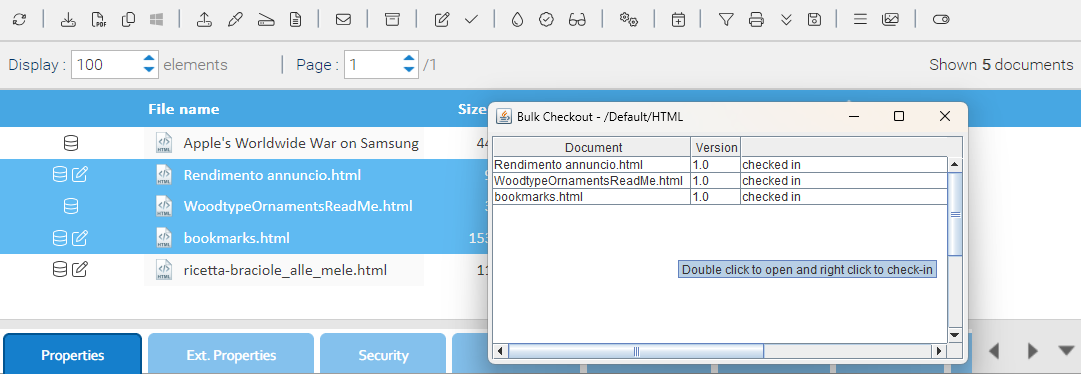
Document checked-out. Only the owner can perform a check-in, uploading a new revision
Document signed. By clicking on the icon, you download the signed copy
Document protected by password
Document is bookmarked
Document contains a stamp. By clicking on the icon, you download the stamped copy


Bookmarks

Bookmarking documents allows you to quickly access your most important files. To add new bookmarks, select the desired documents, and click on Bookmark in the following drop down menu.

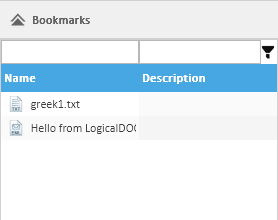
Once a bookmark has been created, it can be found in the general Bookmarks section of the expanding tabs located on the left side of the screen. There you will see a complete list of your bookmarks. Clicking on a bookmark will take you directly to the document. To edit or delete existing bookmarks, right-click on the item that you wish to modify, and select the desired action from the drop-down menu.


Locking and Password Protection

Lock / Unlock

If you want to protect the document so that no other users can make changes to it, use the Lock item from the context menu. This means that until it is unlocked, no other user can modify it. Once locked, a padlock icon appears.

If you want to unlock a document you previously locked, simply select it and use the Unlock item.

Only the owner of the lock or the administrators can unlock a document.

Password Protection

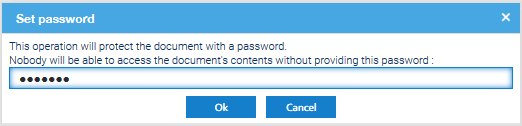
If you want to protect the document with a password so that only the users that know that password can access it, use the Set password item from the context menu. This option is only available if you have the Password permission.

In the dialog box enter your password and press Ok. Once protected, a key icon appears.

Now when a user selects this file, he has to provide the password to access it. Only the administrator can remove the protection by selecting the file and choosing the option Remove password.

Info

The Lock only prevents users from modifyng the content but they continue to be able to access it. On the contrary the Password Protection forbids the access at all, if you do not have the password.


Downloading documents

In order to download a document or convert it to PDF format, you must have the Download permission.

Download

If you want to save a document in the local computer without making any changes, you can right-click on a document and select the Download item. Remember that once you have the file in your desktop, it is a mere copy of the original content stored in LogicalDOC, so your modifications will not be replicated in the system.

You can also download a set of documents as a single .zip archive. Just select some documents, right-click on them and choose Download.

Download Ticket

The Download Ticket is a special link generated by LogicalDOC you can then freely distribute to give access to a specific document to people not registered in the system. The download ticket may have an expiration time and if someone clicks on this link, the document will be downloaded directly from the repository. Find more in the dedicated manual page.

Send a document by Email

To send a document as a mail attachment, first select a document. The next step is to select the Send by Email item from the context menu. It will be shown as an email composer in which you can insert the recipients that will receive your message.

These are the fields you can complete:

  • Recipients: list of email addresses that will receive the document(recipients are not required to be system users)
  • From: one of your sender addresses as specified in your profile
  • Subject: A brief description of the content
  • Template: Optionally select one of the available templates
  • Message: The body of the message

Press Send to send the compiled email with the document as an attachment. If you select more than one document, they will all be added to the email as attachments.

You can also check the flag Send as Download Ticket. If you choose this option, instead of sending the document as an attachment, LogicalDOC will create a new download ticket and append an Internet link to the message body. The download ticket has an expiry time configured by the administrator. If the recipient clicks on this link, the document will be downloaded directly from the repository. The download ticket option will not be available if more than one document is selected.

In the Subject and in the Body, you can use the Automation to dynamically compose the content.

Dictionary available for the Automation in this context

AUTOMATION CONTEXT: SEND MAIL
VariableJava ClassDescription
senderUserthe user sending the email message
documentDocumentfirst attached document
documentsDocumentcollection of attached documents

Read the Automation manual for more information.

Managing contacts

In LogicalDOC you can handle your own contacts address book by entering in the menu Account > Contacts.

This allows you to import and export contacts in CSV format or directly create/modify/delete contacts through the web interface. These contacts will be available during email composition.

Properly configure the SMTP connection

To permit LogicalDOC to send emails, you must configure the connection to an SMTP server in the administration.