
e is required
Google Calendar
Privacy Policy
Before you activate this feature, please take a look at our Google Integration Privacy PolicyAdministrator's Guide
LogicalDOC is an advanced system that allows you to handle a large volume of data. Once installed, you will be able to configure customize it in order to maximize the benefits from your installation. This manual is intended for use by the...Digital Signature Client
LogicalDOC provides a client to allow you to digitally sign your documents directly from your desktop. The Digital Signature Client for your Windows PC is available in the download website. Configuration Once installed,...Manual Update Procedure
Use this procedure in case LogicalDOC cannot download the update packages from the Internet. 1 Backup your System [list style="uk-list"]Hardware Bound License
A Hardware Bound License is tied to the hardware of the server where you installed LogicalDOC in. Licenses of this type are associated with a specific device upon activation and do not work on other computers. To check if you are using a license bound...Data Isolation
Each tenant has its own data: users, folders, documents, templates... When a user logs in, he will operate inside his tenant in a complete isolation. LogicalDOC associates each username to a specific tenant, that's why you cannot use the same username...Locking and Password Protection
Lock / Unlock If you want to protect the document so that no other users can make changes to it, use the Lock item from the context menu. This means that until it is unlocked, no other user can modify it. Once locked, a padlock icon appears. If you...Invoice Approval
Archive Viewer
The system provides to you the Archive Viewer application. It allows you to verify any archive finalized by the system. This application has three functionalities: Verify: archive verification Browse: listing of all documents inside an archive Search:...Move
From the documents list grid, select the documents you want to move and then select the [Cut] item of the context menu. This will put the current selection into the clipboard.Updates
All the official update packages are available in this list; each update package brings the system from a version to another one. [lightbox2 title="Customer Portal - Updates" data-caption="cut document"...Updates
All the official update packages are available in this list; each update package brings the system from a version to another one. [lightbox2 title="Customer Portal - Updates" title="cut document"...Updates
All the official update packages are available in this list; each update package brings the system from a version to another one. [lightbox2 title="Customer Portal - Updates">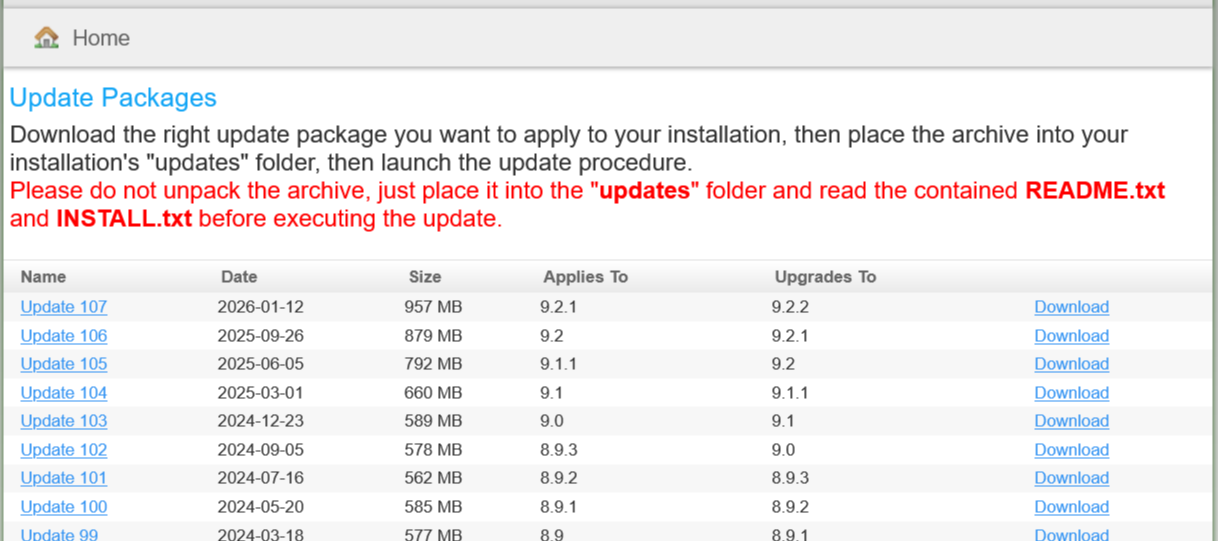
Updates
All the official update packages are available in this list; each update package brings the system from a version to another one. [lightbox2 title="Customer Portal - Updates" width="500"...Folder's Metadata
Each folder has a set of standard metadata you can access and modify (if you have the proper permissions) in the Properties tab. ID: the unique identifier of the folder Path: the full path Name: the name that must be unique under the same node...Change password
At any time, you may change your password by opening the menu Account > Security > Change password You must input your current password and provide the new one(inputted twice). The new password must satisfy the quality constraints configured by the...Compare documents and versions
Thanks to a configurable comparison system, you can compare two documents of the same format. To compare two documents, just select them, then right click and in the context menu choose More > Compare. [lightbox2...Complaint Rationale
[lightbox2 title="Report Parameter" image="/images/stories/en/workflow/samples/complaint_rationale.png" width="500">Tickets
The Tickets report lists all the tickets currently available in the system.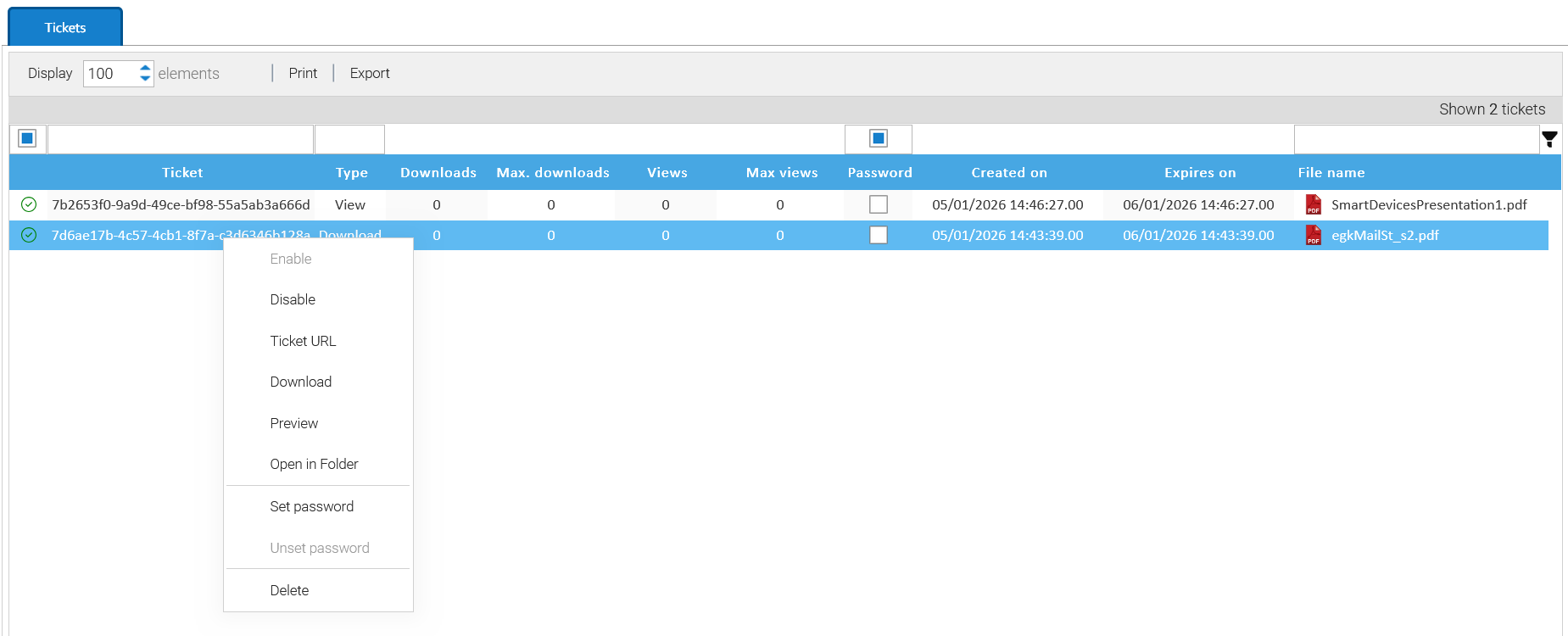
Delete
From the documents list grid, select the documents you want to delete and then select the [Delete] item of the context menu. Then you have to confirm the operation.