
add is required
Install a Trained Model
Training AI models is a computationally intensive and time-consuming process, often requiring specialized hardware and large datasets. For this reason, not all models can be trained directly within LogicalDOC. To simplify adoption, the system allows...Connect Google Gmail Mail Server
LogicalDOC can connect to Gmail in two ways: using a Google App Password or using OAuth 2.0 authentication. OAuth is the recommended, more secure method, but it requires additional setup in Google Cloud. For a simpler configuration, you can use an App...Install third-party Software on Windows
To have additional features like the full preview, you need to install some external components. Ghostscript LogicalDOC uses Ghostscript to render the documents' thumbnails. Ghostscript is available at the following URL: https://ghostscript.com/ At the...Setup a Node
A cluster node is basically a LogicalDOC instance installed on a server in the same subnet. Please read the Installation Guide to install the application Once installed, you have to enter the section Administration > System > Clustering and enable the...Completing a Task
Anytime a new task in which you are a participant has to be completed, you receive a notification by email. You can see all the details of the job in the Workflow section of the Dashboard. Here you find three dashlets that show: tasks assigned to you...Configuring Google API
You can create a connection between your Google account and LogicalDOC. This way, you will be able to use Google Cloud Applications like Drive, Calendar and Gmail from inside LogicalDOC. Third party applications can communicate with your Google account...Configure Single Logout with Microsoft ADFS
The ADFS identity provider supports the Single logout, so you can set up SAML single logout (SLO). When a user initiates a logout, the identity provider logs the user out of all applications in the current identity provider login session. The logout...Outgoing Email
In order to allow LogicalDOC to send emails, you have to connect the application to your SMTP mail server. Into the Outgoing Email section, you can configure the outgoing mail server parameters. Protocol: you can choose between standard SMTP or SMTP...Branding
As an option, it is possible to apply a specific look&feel to the user interface to the whole product and each single tenant. The branding of the whole application is accessible in Administration > System > Branding If you want to change the branding...Access Control
Instead of assigning access rights to each user individually(that in any case is also supported), we suggest administrators to assign permissions to groups, what in other systems you may see as "roles". Role-Based Access Control (RBAC) Role-Based...Full-text Search
The full-text search allows you to search in the contents of the documents. To perform this kind of search you have to enter a text expression. It is possible to restrict the search to a single folder or apply some other filters as you see in the form....Scheduled Tasks
Into the system, there are processes which are performed during normal execution of the program without the intervention of a user. These processes are scheduled tasks, since you can schedule their execution. The section Scheduled Tasks allows you to...External Authentication
The application is able to handle users authentication interacting with external systems in addition to the standard authentication. We can authenticate your users against ActiveDirectory and LDAP systems. Please enter the section Administration >...SAML Single Sign-On
Single Sign-On (SSO) is a way for users to log into multiple applications with a single user ID and password without having to re-enter their credentials. The SAML standard allows identity providers to pass credentials to service providers. LogicalDOC...Embeddings
Embeddings are vectors representing entire documents or fragment of them into a continuous vector space. This numerical representation of is required to efficiently infer similitudes between documents and implement features like Semantic Search. This...Document History
All the events that happen on each single document are recorded and available inside the document's History tab.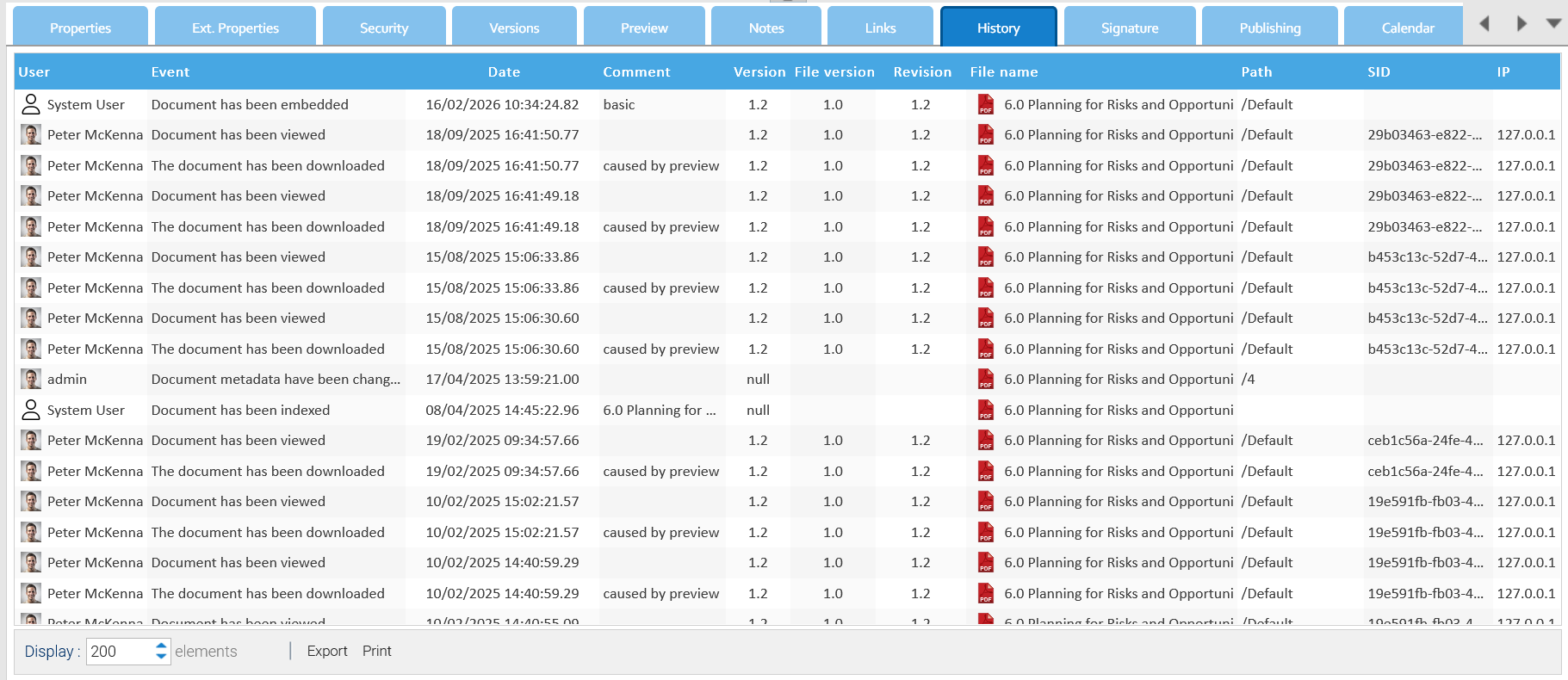
Folder History
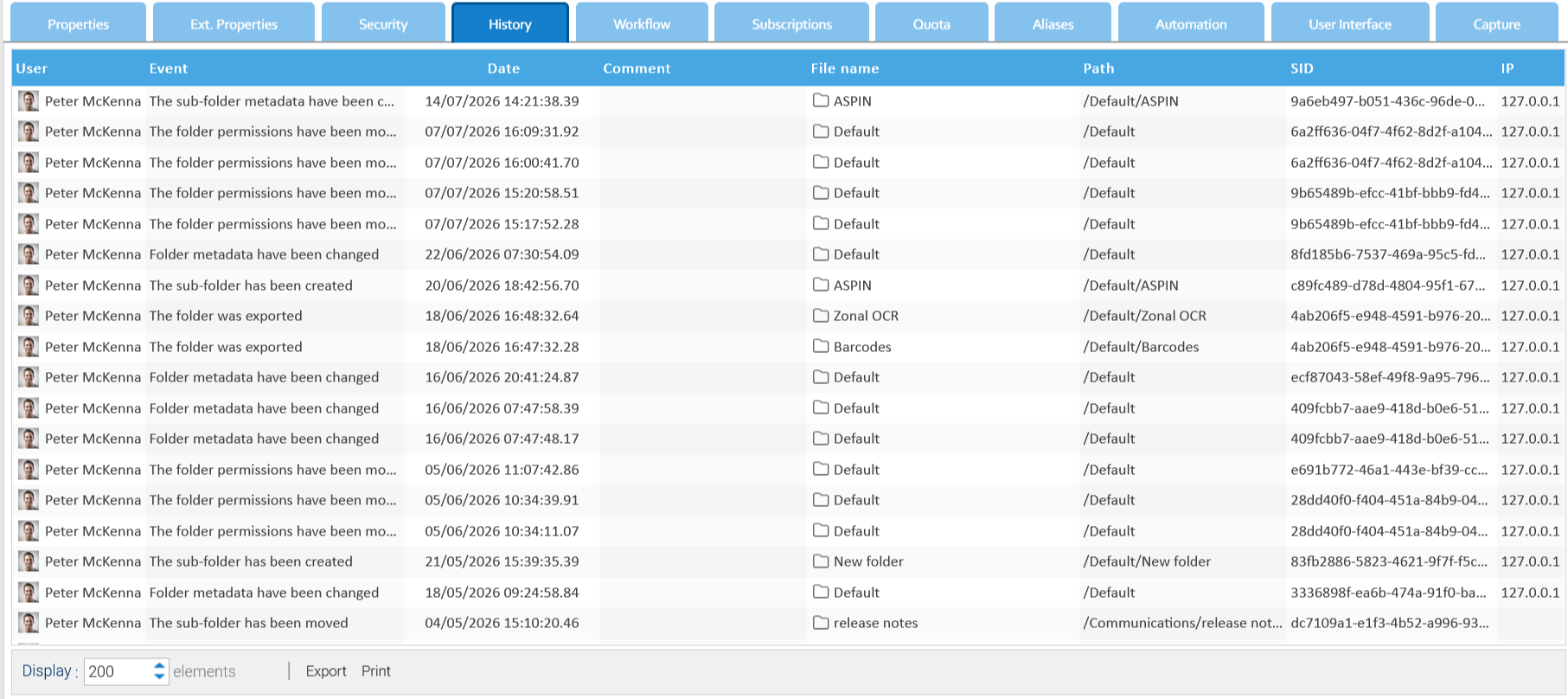
All the events that happen on each single folder are recorded and available inside the folder's History tab.