available output format and if you want to download the converted file or save it inside LogicalDOC in the current folder. See also: Format Converters [alert style="uk-alert-warning"][heading size="h3" style="underline"][icon style="fa...
a current folder, just right click on it, choose Archive. You will be required to enter a comment and then confirm. You will see all the contained documents at any level disappear, this proves they were correctly archived. [alert...
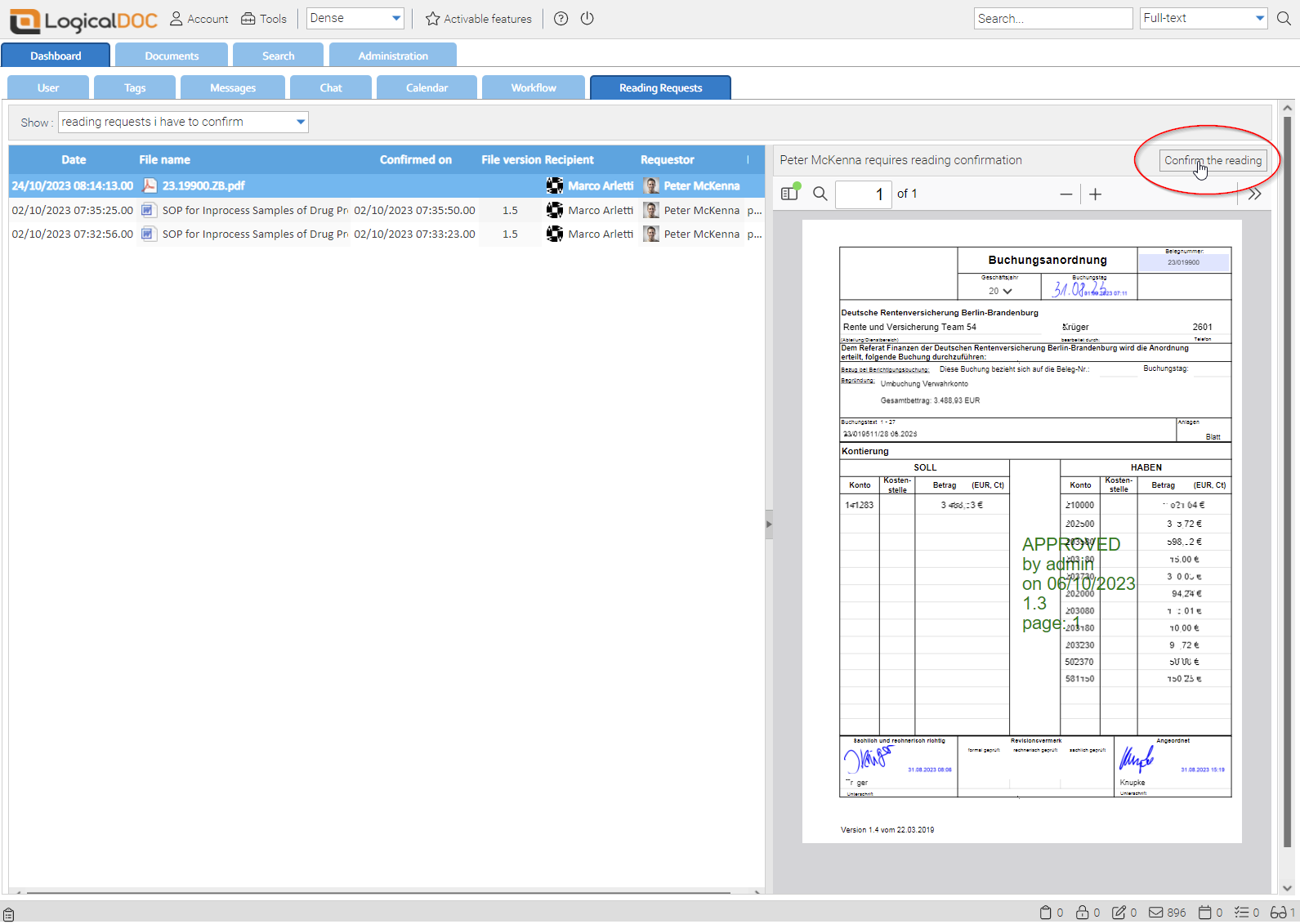
the document has been read. The selected users will be notified about this your request, and they can enter the dashboard to see all the reading requests:
to this template The scheduled task Retention policies Processor processes all the configured policies in the order you see in the administration page. To change the order, just drag & drop an element in the right position. Right-click on a specific...
at https://network.logicaldoc.com and here enter your own license code(UserNo): Once entered, navigate to License where you see all the details of your license and press the Unbind button: [lightbox2 title="Manual Unbind"...
on a selection of documents and choose Archive. You will be required to enter a comment and then confirm. You will see the documents disappear, this proves they were correctly archived. [alert style="uk-alert-large"][heading size="h3"...
this content as it requires the access to the History menu. In addition, you also must be granted the Sessions menu to see the session details. It is important to note that the events listed here are something different than the versions; infact the...