
notes is required
Search and Indexing
Here you can retrieve information about and configure the Search engine, the installed index languages, the available parsers and the queue of documents to be indexed. Search engine Entries count: displays the number of elements in the index...Email Accounts
The system can store emails and their attachments by downloading them from remote email accounts. You can configure a number of email accounts so that they will be regularly inspected by the system, searching for new posts to be imported as documents....Repositories
Stores The stores are containers that LogicalDOC uses to save the files of your documents, these containers are not human-readable and are handled exclusively by the system. You can define more stores by using the button Add Store. In order to change a...Parameters
In general, you configure LogicalDOC by accessing dedicated configuration sections inside the administration. However, there is a set of fine-tuning parameters collected in a single form located in the section Administration > Settings > Parameters...Creation
Into the [Workflow] panel you can create and configure a new workflow template. Clicking on [New Workflow Template] you can configure a new workflow template. The workflow settings consists of: Name Description Task-Assignment Reminder Supervisor In...Dropbox
LogicalDOC integration with Dropbox allows you to import and export documents and folders between both applications. Authorization The first time you import or export with LogicalDOC, an authorization wizard will appear to guide you through the...DocuSign
DocuSign allows organizations to manage electronic agreements and offers eSignature, a way to sign electronically on different devices. Signatures processed by DocuSign are compliant with the US ESIGN Act and the European...Instructions for the Trial
You can try LogicalDOC in different ways, this page lists the options you have available. Install the application in your server All the installation packages are available here: http://dist.logicaldoc.com Detailed instructions for installing in...Install the Application on Ubuntu
Get from the download website the setup file: installer-linux-.zip To install LogicalDOC unpack the zip archive, open a terminal window and execute the command from command line: $ java -jar logicaldoc-installer.jar If the system does not have a...GUI Settings
A set of behaviors and parameters of the user interface are configurable in the GUI Settings page. Welcome message: a message displayed to all the users when they sign in Preview window: percentage of the screen width occupied by the preview window...Two Factors Authentication (2FA)
Two-factor authentication is now recommended to secure login to Internet services and protect against phishing attacks and credential theft. This authentication generates two-step verification codes for the users on their devices, thereby increases the...Install third-party Software on Ubuntu
To have additional features like the full preview, you need to install some external components. Conversion to PDF This feature allows you to convert an office type document to PDF format. Requires the presence on the system of LibreOffice. LibreOffice...Move
From the documents list grid, select the documents you want to move and then select the [Cut] item of the context menu. This will put the current selection into the clipboard.Configure Outlook Addin
Once installed, open your Outlook and note that a new menu now appears in the menu bar, open this menu and select the [Configuration] item. In the configuration form, you have to put the following information: Username: the username you use to log in...Configure Office Addin
Once installed, open your Office and note that a new button now appears in the menu bar, open this menu and select the Settings item. In the configuration form, you have to put the following information: Username: the username you use to log in into...Tickets
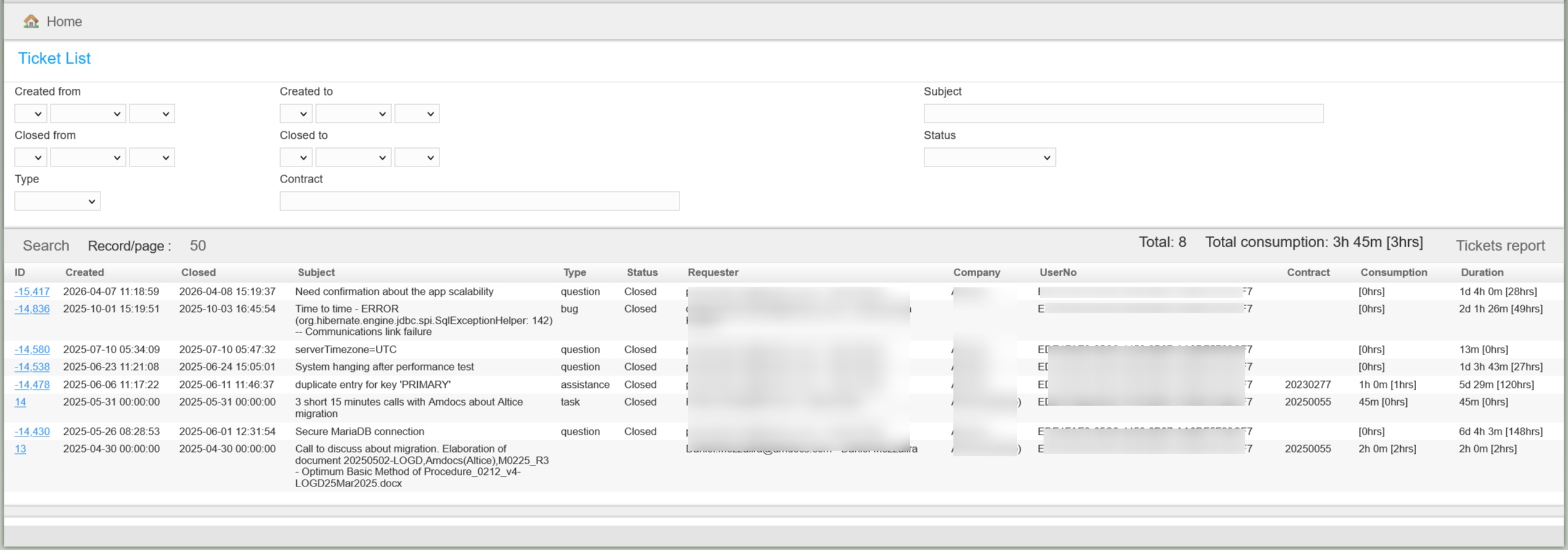
This section collects all the tickets raised for your installation [lightbox2 title="Customer Portal - Tickets" data-caption="cut document"...Configure Outlook Addin
Once installed, open your Outlook and note that a new menu now appears in the menu bar, open this menu and select the [Configuration] item. In the configuration form, you have to put the following information: Username: the username you use to log in...Configure Office Addin
Once installed, open your Office and note that a new button now appears in the menu bar, open this menu and select the Settings item. In the configuration form, you have to put the following information: Username: the username you use to log in into...Tickets
This section collects all the tickets raised for your installation [lightbox2 title="Customer Portal - Tickets" title="cut document"...Configure Outlook Addin
Once installed, open your Outlook and note that a new menu now appears in the menu bar, open this menu and select the [Configuration] item. In the configuration form, you have to put the following information: Username: the username you use to log in...Configure Office Addin
Once installed, open your Office and note that a new button now appears in the menu bar, open this menu and select the Settings item. In the configuration form, you have to put the following information: Username: the username you use to log in into...Tickets
This section collects all the tickets raised for your installation [lightbox2 title="Customer Portal - Tickets">