
Fillers
Fillers are configurable components used to extract and populate structured information from documents automatically. They define how specific data, such as tags, language, and templates, are identified and retrieved from document content.
Fillers are typically used in conjunction with document processing workflows to enable automated data extraction and reduce manual input.
Fillers Management
In Administration > Artificial Intelligence > Fillers, you can manage fillers from the dedicated panel.
The Filler panel provides a list of all configured fillers and allows you to:
- View existing fillers
- Create new fillers (Add filler)
- Edit filler configuration
- Delete fillers
Each filler is displayed with the following attributes:
- Name: Internal identifier of the filler
- Label: User-friendly name shown in the interface
- Type: The extraction strategy used by the filler
- Description: Additional details about the filler’s purpose
- Overwrite: When checked, the filler overwrites the already filled information
- Fill on check-in: When checked, the document is automatically filled at check-in
When you create a new filler by clicking on Add filler, you will be required to specify one of the available fillers.
Filler Properties
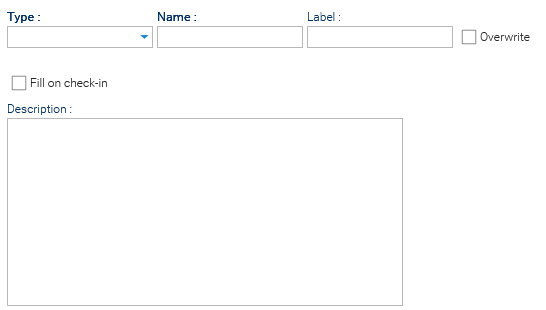
Each filler is configured through the filler Properties panel, where you define how the extraction is performed and which technologies are used.
The configuration is dynamic: some fields appear or change depending on the selected filler type and strategy.
At the time of writing, you can choose among these filler types:
- Tag: Assigns a value to a field based on semantic similarity or classification
- Language: Assigns the document language based on content analysis
- Template: Assigns a document template based on semantic similarity
- Chain: Assigns values by combining multiple fillers in sequence
Tag Filler
When the selected filler is of type Tag, you must define a Strategy that determines how the value is retrieved, along with a Threshold value that defines the minimum confidence required to accept a result.

The available strategies are: AI Model and Semantic Similarity. Additionally, the selected strategy affects which additional fields are required.
- AI Model (Model-based)
Uses a machine learning model to classify or extract the value directly- Model: for the selection of a specific AI model (This setting must reference a previously configured model)

- Model: for the selection of a specific AI model (This setting must reference a previously configured model)
- Semantic Similarity (Retrieval-based)
Uses vector similarity search over embeddings to retrieve the most relevant content- Embedding Scheme: for the selection of a specific embedding scheme (This setting must reference a previously configured embedding scheme).

- Embedding Scheme: for the selection of a specific embedding scheme (This setting must reference a previously configured embedding scheme).
Language Filler
When the selected filler is of type Language, you must define a Model to specify the AI model used for extraction.

Template Filler
A filler of type template does not present any extra required fields.
The Template Filler is a specialized filler used to automatically assign a template to a document based on its content.
Instead of extracting a single field, this filler performs semantic classification, identifying which template best matches the document.
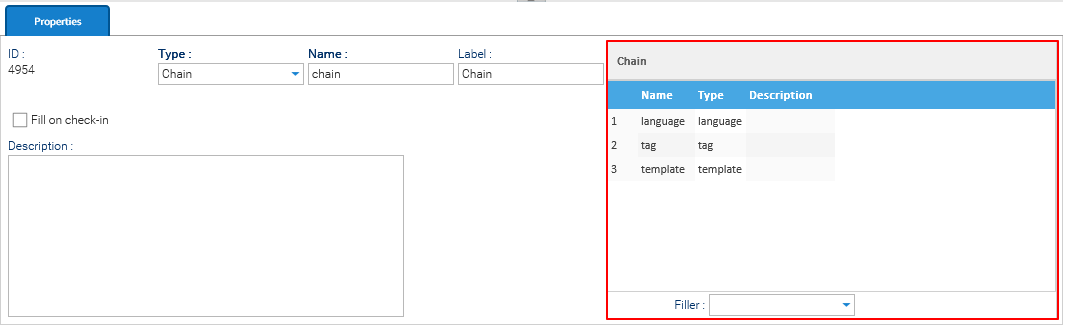
Chain Filler
When the selected filler is of type Language, you must define a chain of fillers in the table on the right side of the panel. The filler acts as a pipeline of multiple fillers executed in sequence.
In this case, the table allows you to:
- Add fillers to the chain
- Reorder execution (drag & drop)
- Remove fillers